
Cross-Tenant Microsoft Teams Migration Guide
This guide is aimed at experienced system administrators who are capable of connecting to remote systems and using a variety of administration tools.
Overview
Cloudiway's Cross-Tenant Teams migration solution helps businesses perform technical migrations through a simple SaaS interface. Teams migrations require no additional software installation or overhead, and migrations can be performed securely and quickly.
The Cloudiway Platform allows migrating Microsoft Teams and Office 365 Unified Groups between tenants, including channels, conversations, files, planners, and memberships.
Video Tutorials
Teams to Teams Migration
One-on-One Chat Messages Migration
Looking for our Microsoft Teams Migration Solution?
Discover all features, pricing, and use cases for Microsoft Teams cross-tenant migration.
View Solution PagePrerequisites
The Cross-Tenant Microsoft Teams Migration uses a mix of Graph APIs and CSOM calls. Therefore, it requires configuring specific permissions at the source and target to execute Graph and CSOM calls.
Source Prerequisites
Create a source Microsoft 365 service account:
We recommend creating an account dedicated to the migration that can be deleted once the migration is completed.
- The migration account needs an Office 365 Teams License
- For CSOM access, it must be SharePoint administrator
- The migration account needs to be an Owner and a Member of the Group/Team in both source and target. The migration engine will add it automatically if needed.
Target Prerequisites
Create a target Microsoft 365 service account:
- The migration account needs an Office 365 Teams License
- It must be SharePoint administrator
Entra ID Application (Azure AD)
Graph API calls are performed through an Entra ID Application which is granted specific permissions. You can either create an Entra ID Application manually or let the platform create one for you.
Source App Registration
Create an application in Microsoft Entra ID for source tenant
Target App Registration
Create an application in Microsoft Entra ID for target tenant
Graph API Permissions
Required permissions for Teams, Groups, and SharePoint access
Admin Consent
Granted by a Global Administrator
For manual setup, please consult: How to create the Azure Active Directory Application and associated permissions.
Mapping Table
In Microsoft Teams, there are permissions and metadata (createdby, modifiedby, etc.) that contain email addresses. During the migration, these addresses must be converted into target accounts.
What is Migrated
The following items are migrated during a Microsoft Teams migration:
For more details, visit the Microsoft Teams Migration Tool page.
Migration Process
The Microsoft Teams to Teams migration is an eight-step process:
- Create the connectors for connecting to the source and the target
- Edit the Global Settings
- Run a Discovery (GetList) or upload your list from a CSV file
- Configure the target location and Target Connectors
- Run an Audit to fully scope the scale of the migration (optional)
- Run a Pre-Processing to pre-create the target teams and channels and migrate the permissions
- Run the migration
- Close the Team
Step 1: Create Connectors
To facilitate the cross-tenant Microsoft Teams migration, the Cloudiway platform needs to communicate with both your source and target domains. To do this, Cloudiway uses connectors.
You will need to set up a connector for each source tenant and each target tenant. Please refer to the Connectors Guide to configure your connectors.
Step 2: Migration Settings
Review and configure the migration settings according to your requirements.
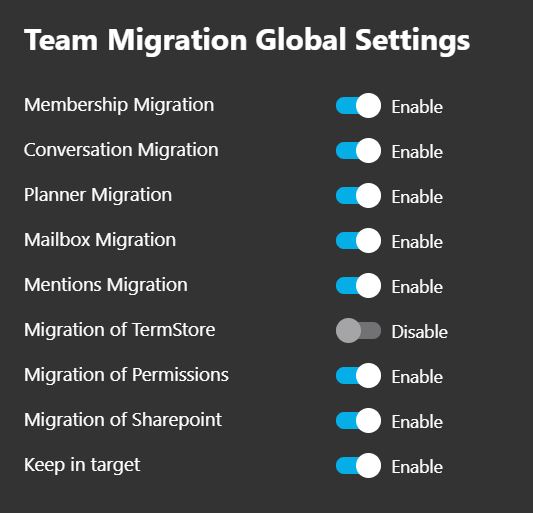
| Setting | Description |
|---|---|
| Membership Migration | Enable the migration of team members |
| Conversation Migration | Enable the migration of channel conversations |
| Planner Migration | Enable the migration of Planners |
| Mailbox Migration | Enable the migration of team mailboxes |
| Mentions Migration | Enable the migration of Mentions |
Channel Migration Settings
Configure how channel messages are migrated or archived during the migration process. These settings have a significant impact on migration performance and duration.
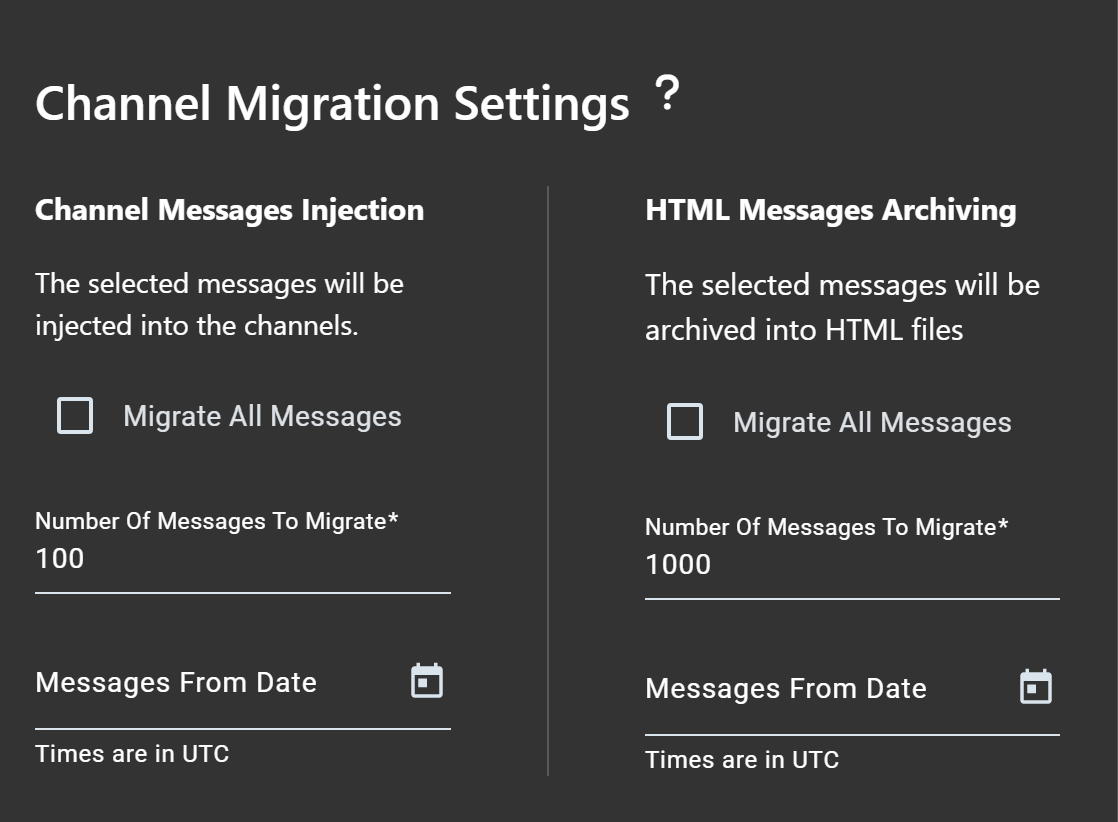
| Setting | Description |
|---|---|
| Channel Messages Injection | Messages will be injected directly into the target channels using the Microsoft Teams Import API. This preserves the original message format and metadata. |
| Migrate All Messages | When enabled, all messages from the source channel will be migrated. When disabled, you can specify the number of messages to migrate. |
| Number Of Messages To Migrate | Specifies the maximum number of messages to migrate per channel (default: 100 for injection, 1000 for archiving). |
| Messages From Date | Only migrate messages posted after this date. Use this to limit the migration scope to recent conversations. Times are in UTC. |
| HTML Messages Archiving | Messages will be exported and archived as HTML files in the target SharePoint document library. Useful for compliance and record-keeping purposes. |
Recommended Default Settings
For optimal migration performance, we recommend the following configuration:
- Channel Messages Injection: Enable this option for full-fidelity message migration with preserved metadata and timestamps.
- Migrate All Messages: Disable this option and set a reasonable message limit to control migration duration.
- Number Of Messages To Migrate: Start with 500-1000 messages per channel. This provides recent conversation history while maintaining good performance.
- Messages From Date: Set to 6-12 months ago to focus on relevant, recent conversations.
- HTML Messages Archiving: Enable only if you need compliance records or want to preserve older messages that exceed the injection limit.
Performance Considerations
- Message volume impact: Migrating all messages from channels with years of history can significantly increase migration time. A channel with 10,000+ messages may take hours to process.
- API throttling: Microsoft Graph API has rate limits. Large message volumes may trigger throttling, which Cloudiway handles automatically with retry mechanisms, but this extends migration duration.
- Attachments and media: Messages with attachments (images, files, GIFs) require additional API calls and storage transfers, impacting performance.
- Batch processing: Cloudiway processes messages in batches. Smaller message counts allow for faster completion and easier progress tracking.
- Parallel migrations: When migrating multiple teams simultaneously, consider reducing message limits to balance the load across all migrations.
Pro Tip: Hybrid Approach
For channels with extensive history, use a hybrid approach: inject the most recent messages (last 6-12 months) for interactive use, and archive older messages as HTML for reference. This provides the best balance between user experience and migration efficiency.
Step 3: Fill Group List
Navigate to the Group List menu to add the teams you want to migrate.
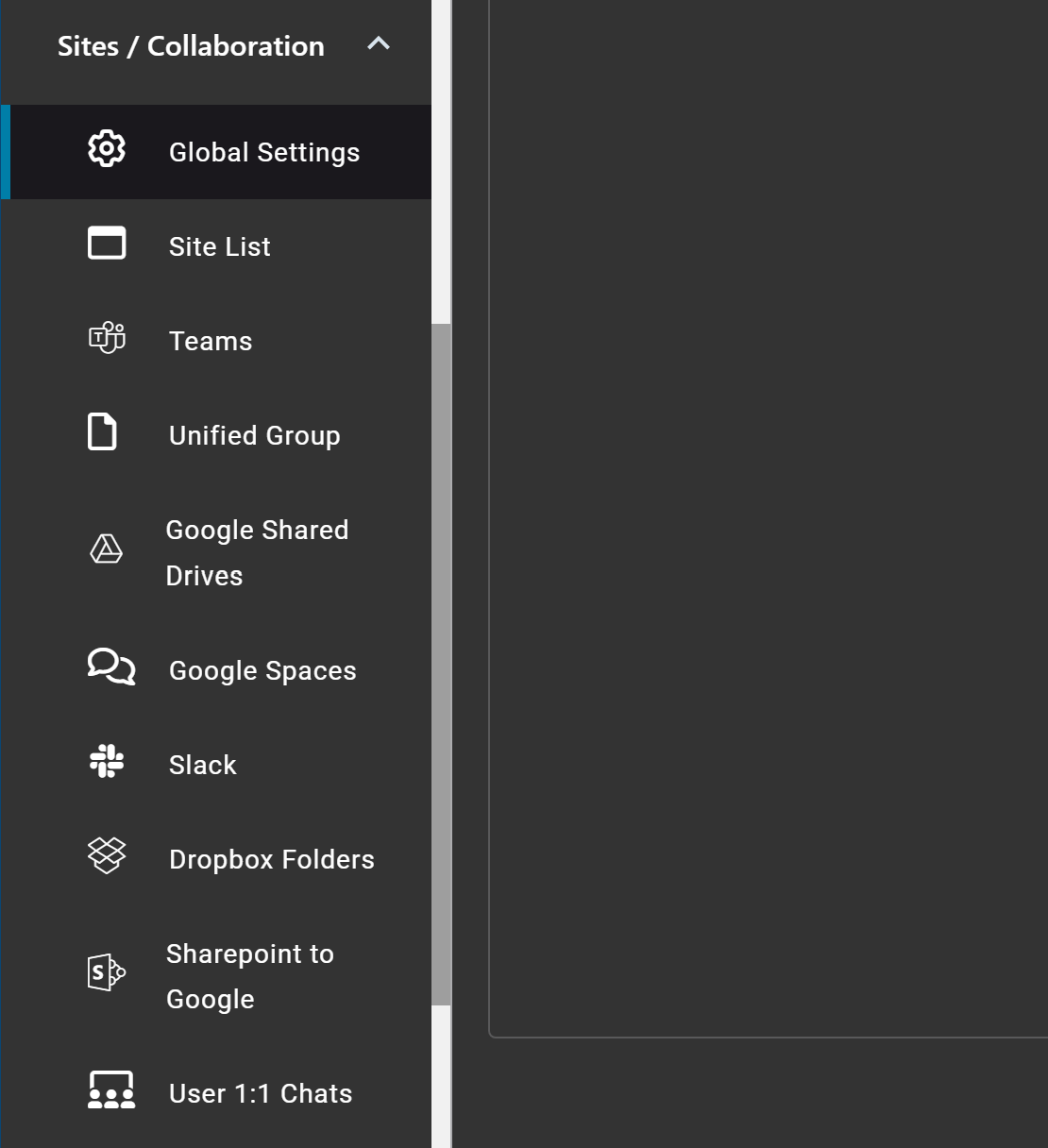
You have 3 different methods to fill the list:
Discovery (Get List)
Automatically discover all Teams from the source tenant.
Import CSV
Upload a CSV file containing the teams to migrate.
Create Manual Entry
Manually add individual teams one by one.
Import CSV
Click on Group List > Import to upload a CSV file containing the teams to migrate.
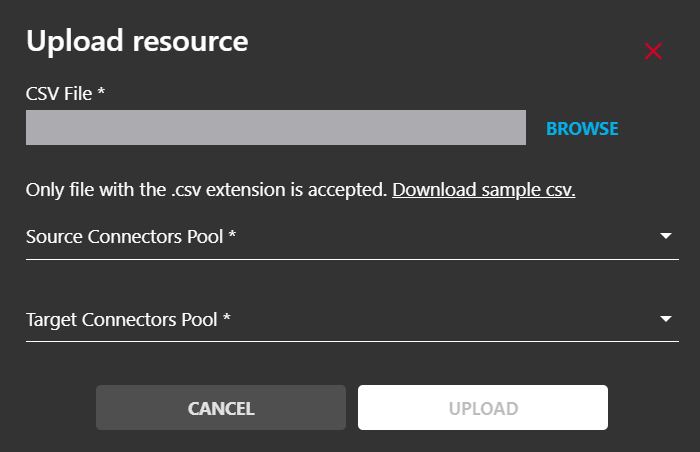
The CSV file must include the following columns:
| Column | Required | Description |
|---|---|---|
SourceGroupName | Yes | The display name of the source team (e.g., "Marketing Team") |
SourceGroupEmail | Yes | The email address of the source team (e.g., "[email protected]") |
TargetGroupName | No | The display name for the target team. If empty, uses the source name. |
TargetGroupEmail | No | The email address for the target team. If empty, uses the source email with target domain. |
SourceRecipientType | No | Type of source: "MicrosoftTeam" or "UnifiedGroup". Default: MicrosoftTeam |
TargetRecipientType | No | Type of target: "MicrosoftTeam" or "UnifiedGroup". Default: MicrosoftTeam |
CSV File Documentation: For detailed CSV file specifications, column descriptions, and sample files, refer to the CSV File Format for Teams Migration documentation.
Create Manual Entry
Click on Group List > Create to manually add a team.
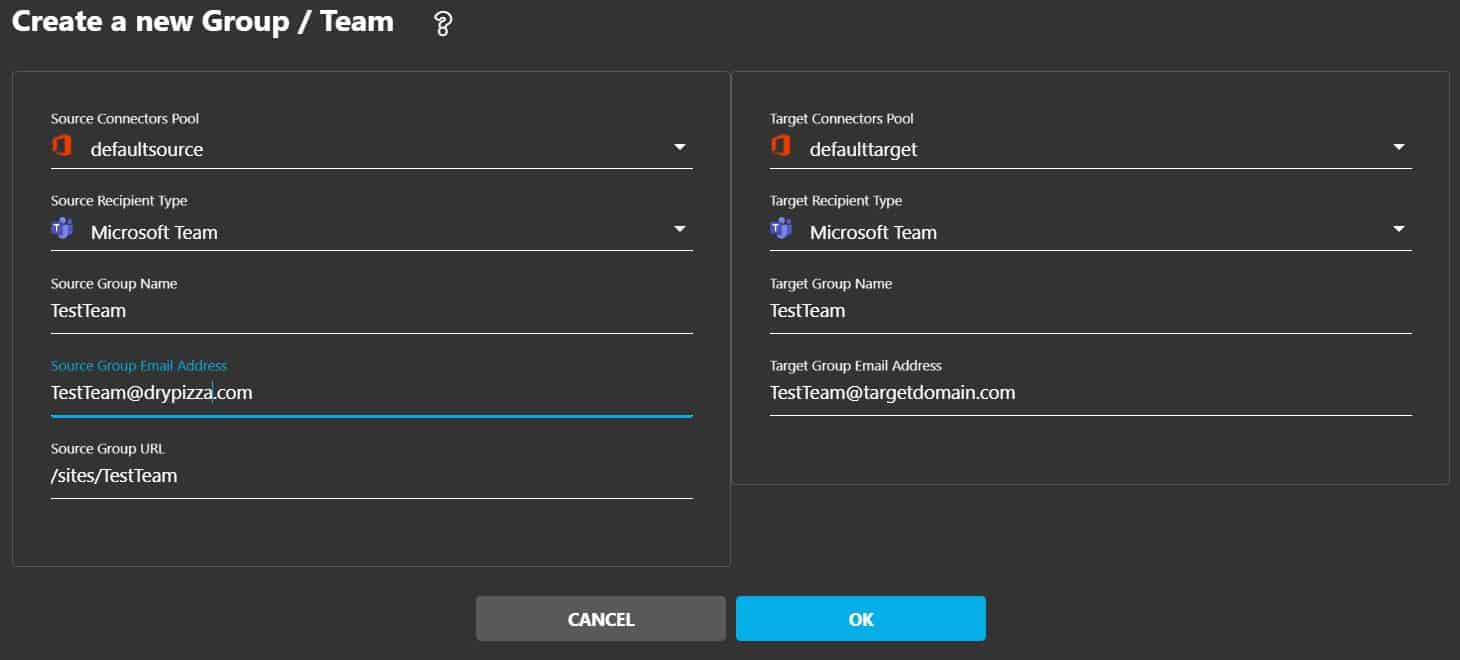
Fill in the following fields:
- Source Connectors Pool: Select the pool of connectors
- Target Connectors Pool: Select the pool of connectors
- Source Recipient Type: Select Microsoft Team or Unified Group
- Target Recipient Type: Select Microsoft Team or Unified Group
- Source Group Name: Enter the name of the team to migrate
- Target Group Name: Enter the name of the team to create (can be different)
- Source Group Email Address: Enter the email address of the team
- Target Group Email Address: Enter the target email address
- Source Group URL: Enter the relative URL of the SharePoint site of the team
Step 4: Target Location
Configure the Target Location for your teams.
If you want to mass assign a target connector to your objects in the list, you can select them and from the menu, click on MANAGE, then Assign Target.
Add a Prefix to the Target
You can add a Prefix to the Target Group Name and the Target Group Email Address.
In the Group List, check one or more objects that you want to add a prefix to. Go to MANAGE, then click Add Prefix.
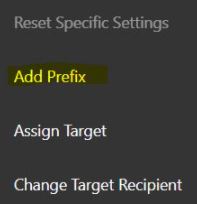
Enter the Prefix in the pop-up and click SAVE.
Merging Multiple Teams into a Single Team
If you want to merge several source Teams into a single Team in the target, migrating each source Team into a separate Team channel, you have to specify the same:
- Target Name
- Target Email Address Nickname
These both parameters refer to the target Team.
In each migration line item, specify a different Target Channel Name where each source Team will be migrated into.
Step 5: Audit (Optional)
The audit is optional and purely informative. It consumes the Cloudiway license. You do not have to run it unless you wish to see how many channels, files, and folders you have in the source Microsoft Team.
This feature reports information about the Source team:
- Number of channels
- Number of conversations in each channel
- Number of files per channel
- Number of members
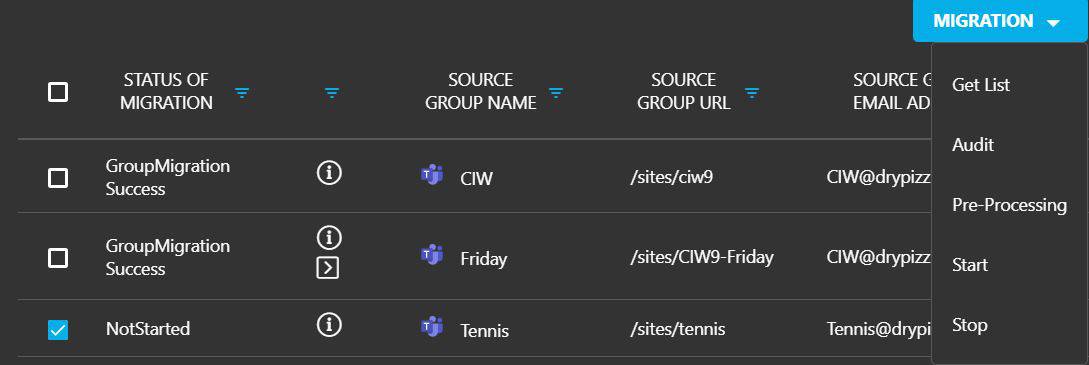
To Audit a team, in Group List, select it and click on MIGRATION, Audit.
Step 6: Preprocessing
Before running the actual migration, you must run the Preprocessing task. This essential step prepares the target environment for migration.
- Pre-creates target teams and channels
- Migrates team permissions and memberships
- Creates the team in Import Mode for faster migration
- Validates connectivity to both source and target
To run preprocessing, in Group List, select the team and click on MIGRATION, Preprocessing.
Step 7: Run Migration
Before starting the Microsoft Teams to Teams migration, you must run the preprocessing (see step above) of the team.
To start the migration, in Group List, select the team and click on MIGRATION, Start.
This will schedule the migration. The migration will start as soon as there is a free spot on the platform.
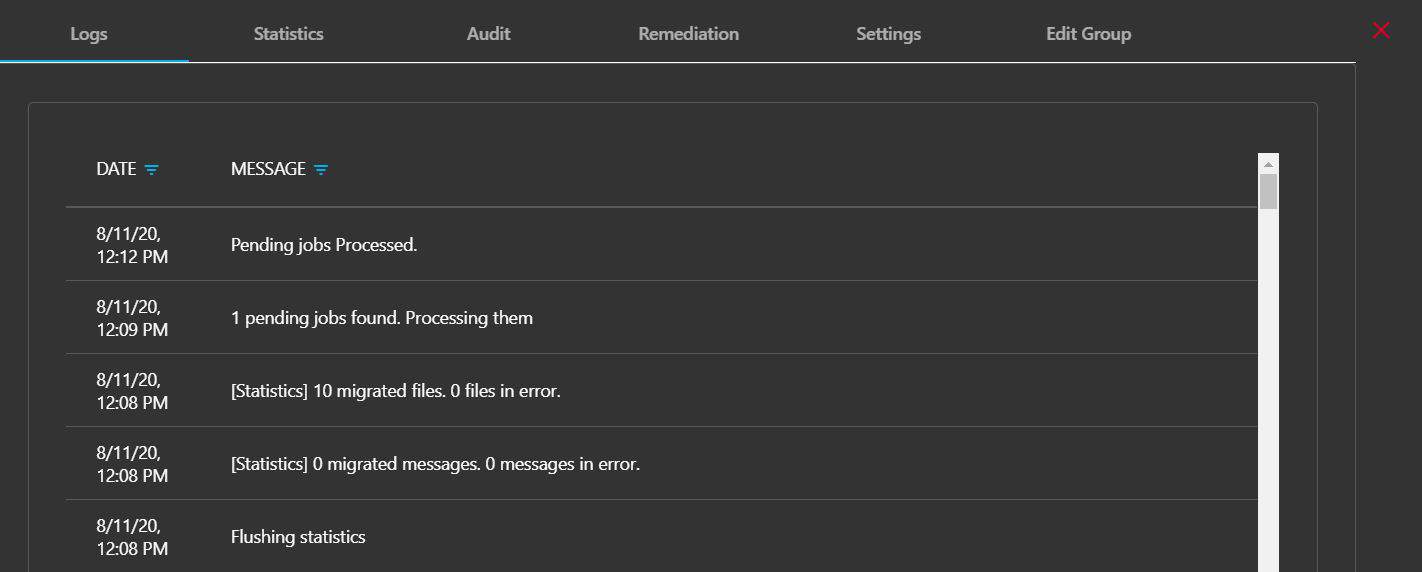
You can monitor your migration by clicking on the team in the list.
Step 8: Close Team (Post-Migration)
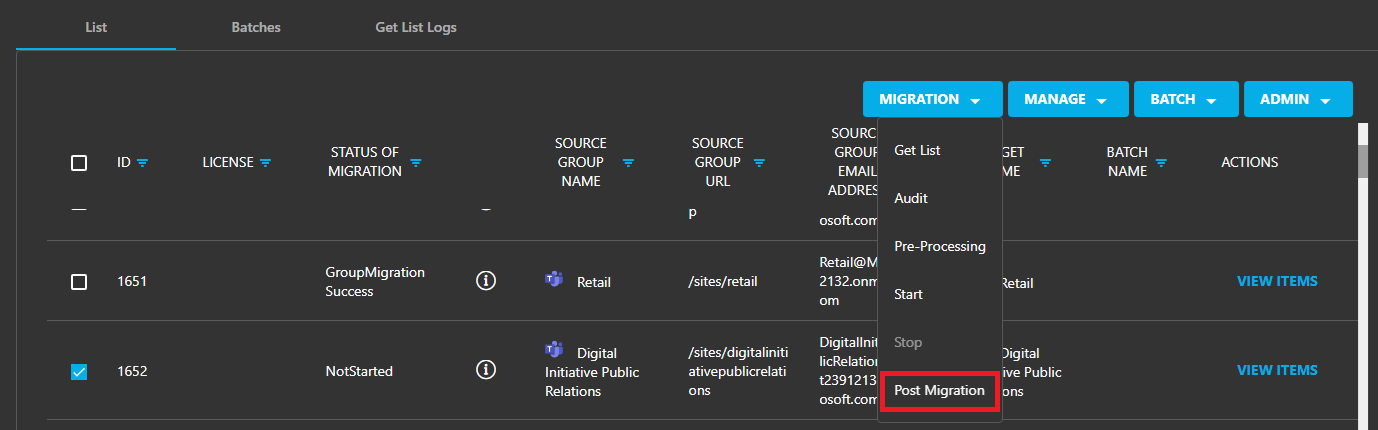
When your migration is completed, run the Post Migration Task. This will close the Team that has been created in import mode.
Delta Pass
Delta migration is a Cloudiway functionality that allows you to migrate incrementally. Changes are migrated during delta passes.
Troubleshooting
Cloudiway provides an extensive knowledge base with many resources, including common error messages, video guides, and downloads.
Please visit the knowledge base here: https://help.cloudiway.com/
Frequently Asked Questions
Does Cloudiway use Microsoft Teams Import API?
Yes, Cloudiway leverages Microsoft Teams Import APIs to maximize throughput. This allows for faster migration of channel conversations with proper metadata preservation.
Can I migrate private channels?
Yes, Cloudiway supports migrating private channels. Private channels cannot be created in Import mode, so if you are migrating to a private channel, you don't have to run the Post Migration Task.
What happens after I close a Team?
Once a team is closed, the import API cannot be used anymore. If you start a delta pass after closing the team, the delta pass will work but the metadata will not be injected anymore into the messages.
Does the migration account need to be an Owner of the Team?
Yes, the migration account needs to be an Owner and a Member of the Group/Team in both source and target. If your source migration account is not Owner and Member of the Team, the migration engine will add it automatically.
Microsoft Teams Migration Tool
Explore all the features of our Microsoft Teams migration tool including channel conversations, planners, files, and memberships migration.
View Product Details