
Exchange On-Premises to Microsoft 365 Migration Guide
This guide explains how to migrate Exchange On-Premises mailboxes to Microsoft 365 in 5 simple steps using the Cloudiway migration platform.
Overview
This guide explains how to migrate Exchange On-Premises to Microsoft 365 using Cloudiway's migration platform. The process uses Exchange Web Services (EWS) to connect to your on-premises Exchange server.
https://your-exchange-server/EWS/Exchange.asmx Looking for our Exchange Migration Solution?
Discover all features, pricing, and use cases for Exchange to Microsoft 365 migration.
View Solution PageAuthentication Modes
Cloudiway supports three authentication modes for Exchange On-Premises:
Step 1: Create Exchange On-Premises Source Connector
Create a connector for your Exchange on-premises server to connect via Exchange Web Services (EWS):
Create New Connector
Go to Connectors > New and select Exchange On Premises as the connector type. Select Mail as the product to migrate.
Configure Connector Settings
Configure your Exchange server connection with the following parameters:
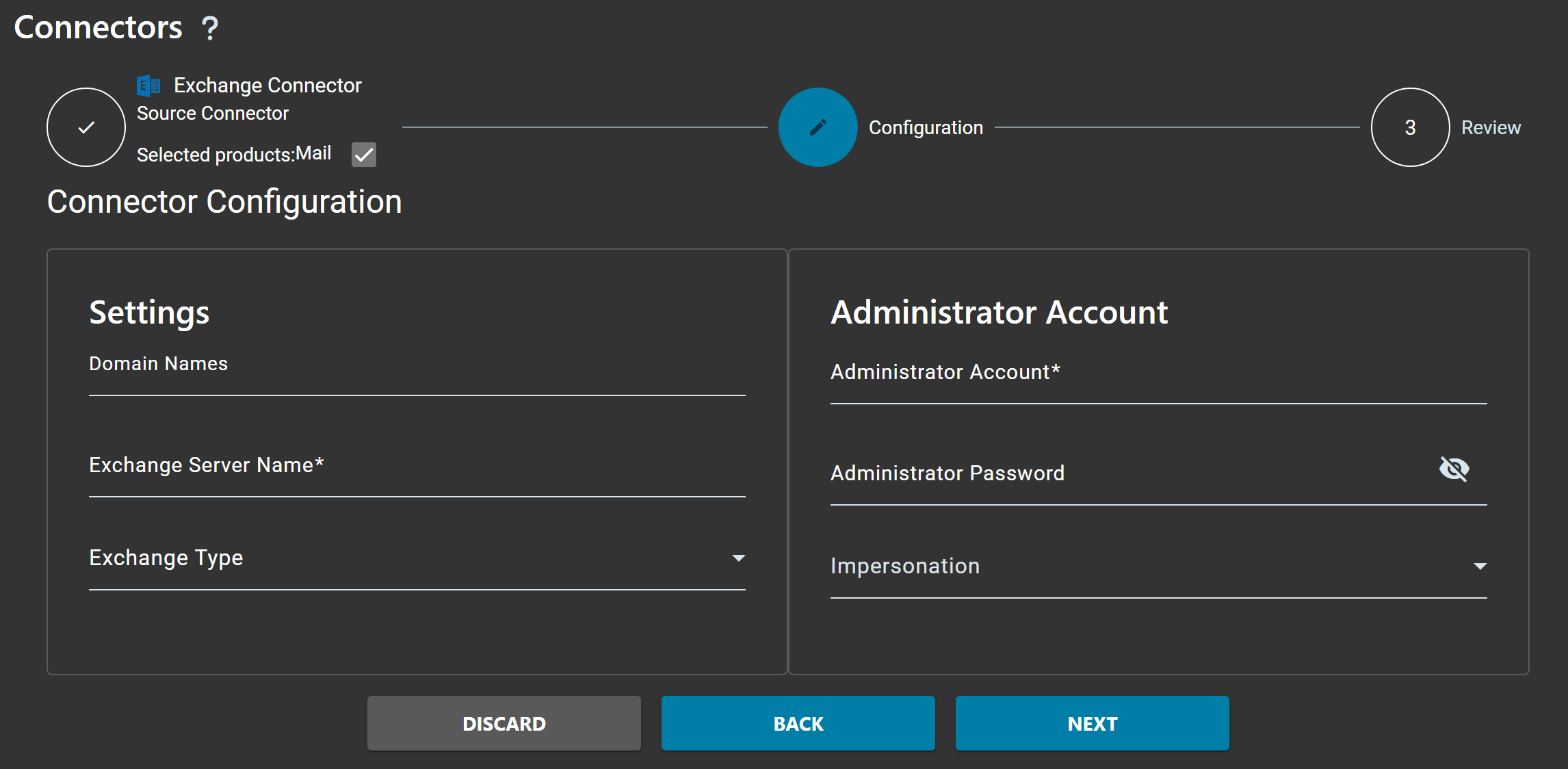
Server Settings
| Parameter | Description |
|---|---|
| Domain Names | The SMTP domain names of the mailboxes (e.g., company.com) |
| Exchange Server Name* | The Exchange Web Services URL: https://your-exchange-server/EWS/Exchange.asmx |
| Exchange Type | Select your Exchange Server version (2010, 2013, 2016, 2019) |
Administrator Account
| Parameter | Description |
|---|---|
| Administrator Account* | The migration service account with permissions to access mailboxes (e.g., migration@company.com) |
| Administrator Password | The password for the migration service account |
| Authentication Mode | Select Impersonation, Delegation, or Self Service based on your setup |
Complete Setup
Click NEXT to review your configuration, then click NEXT again to save your connector.
ApplicationImpersonation role assigned. Run this PowerShell command in Exchange Management Shell:
New-ManagementRoleAssignment -Name:impersonationAssignmentName -Role:ApplicationImpersonation -User:serviceaccount
Step 2: Create Target Connector
Create a target connector for your destination platform. You can migrate Exchange On-Premises to Microsoft 365 or Google Workspace.
Option A: Microsoft 365 Target
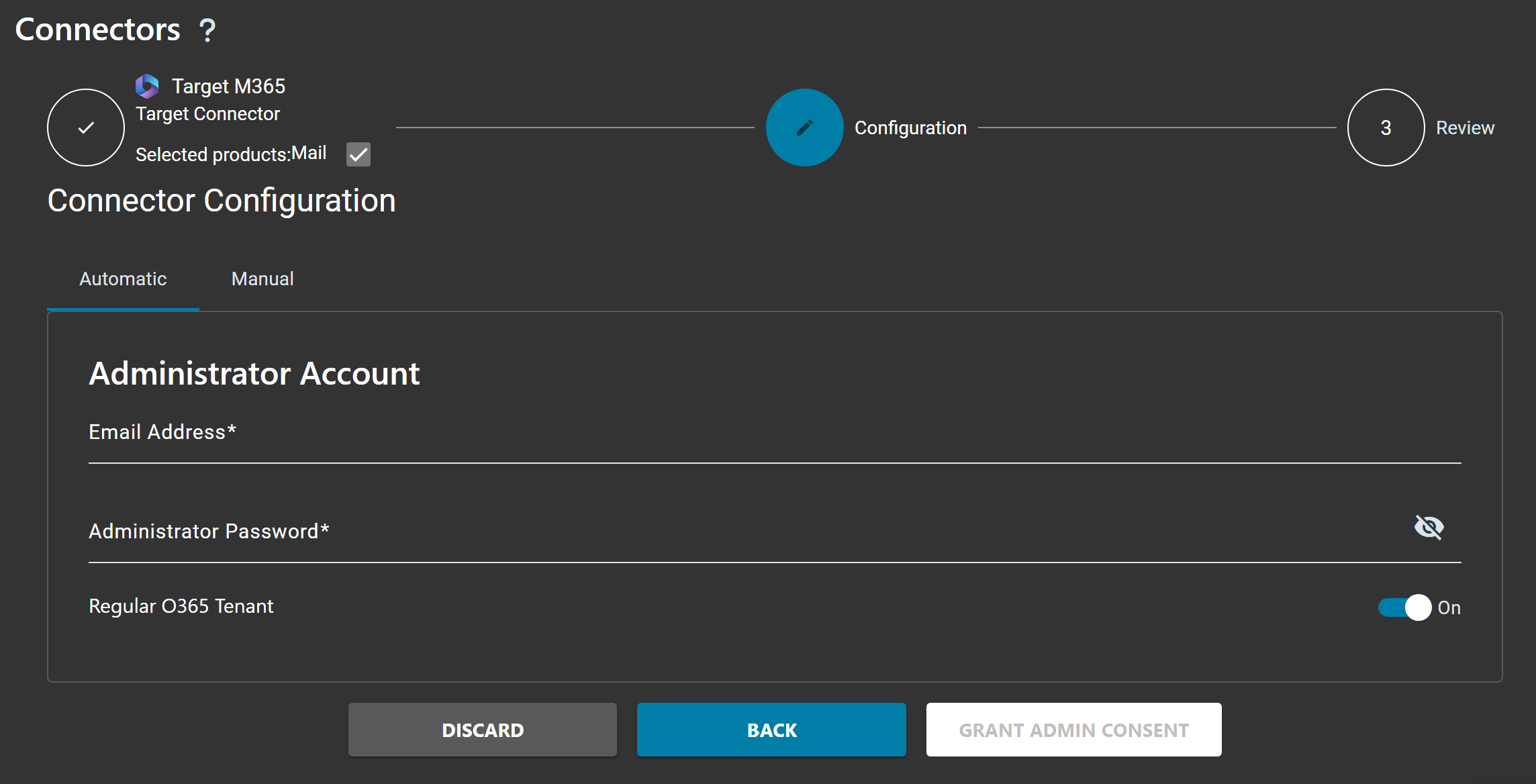
Create New Connector
Go to Connectors > New, select Microsoft 365 as connector type.
Configure Authentication
Choose Automatic mode and enter your Microsoft 365 Global Administrator credentials, then click GRANT ADMIN CONSENT.
Complete Setup
Review settings and complete the connector creation.
Option B: Google Workspace Target
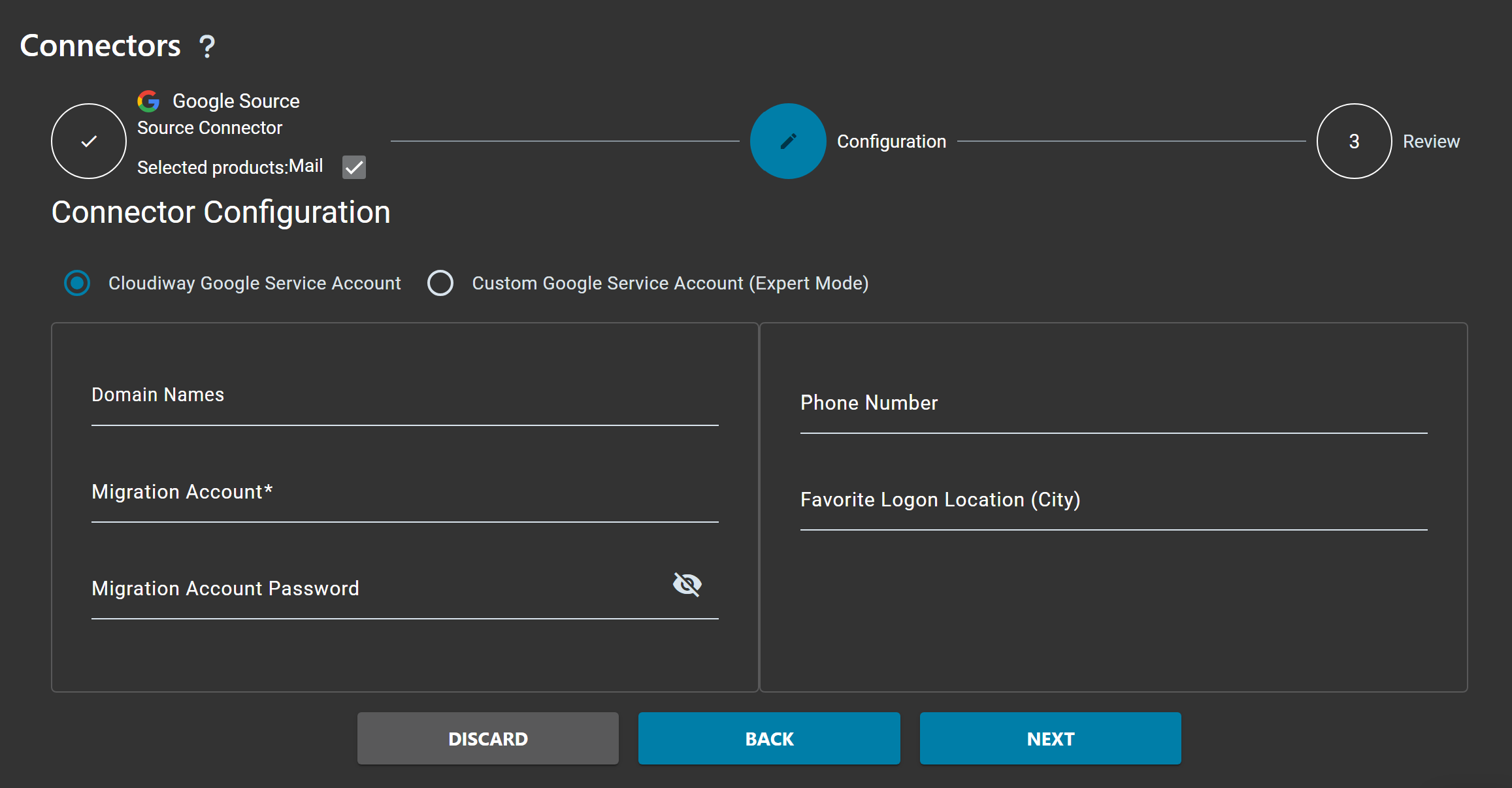
Create New Connector
Go to Connectors > New, select Google Workspace as connector type.
Configure Service Account
Choose Automatic mode and sign in with your Google Workspace Super Admin account to authorize access.
Enable Domain-Wide Delegation
Follow the prompts to enable domain-wide delegation for the Cloudiway service account in your Google Admin Console.
Complete Setup
Review settings and complete the connector creation.
Step 3: Configure Global Settings
Navigate to Mails > Global Settings to configure your migration options:
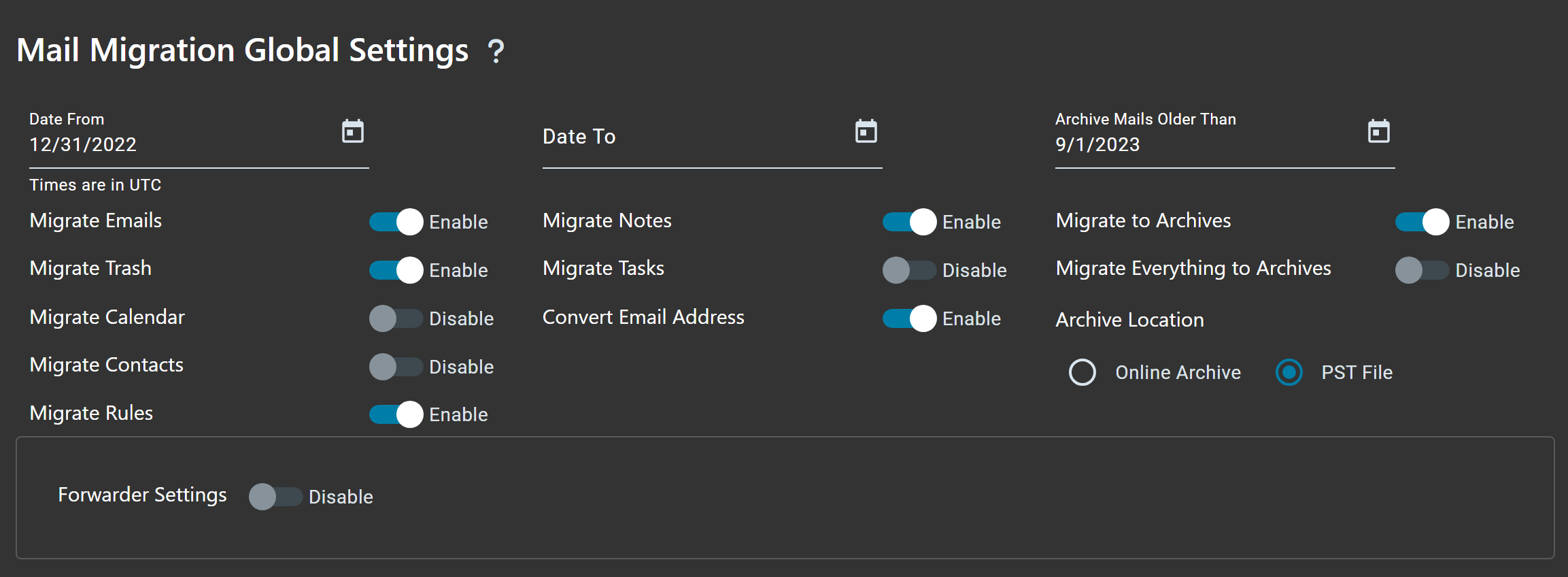
Migration Scope
| Setting | Description |
|---|---|
| Migrate Emails | Enable to migrate email messages from Exchange mailboxes |
| Migrate Calendar | Enable to migrate calendar events, appointments, and recurring meetings |
| Migrate Contacts | Enable to migrate contacts from Exchange address books |
| Migrate Tasks | Enable to migrate tasks (if supported by target) |
Advanced Settings
| Setting | Description |
|---|---|
| Date Filter | Optionally filter items by date range to migrate only recent data |
| Convert Email Address | Rewrites email addresses found in headers and calendar items from old domain to new domain |
Step 4: Run Migration
Now you can populate the user list and run the migration.
Populate User List
Navigate to Mails > User List to add users for migration. There are three ways to populate the user list:
Option 1: Discovery (Get List)
Under MIGRATION, click on the Get List option:
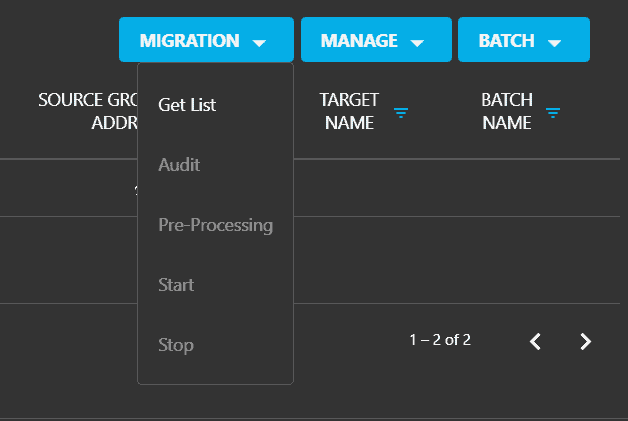
Specify the following parameters:
Source Pool
Select the Exchange On-Premises source connector you created earlier.
Target Pool
Select the Microsoft 365 or Google Workspace target connector.
Matching Rule
Choose how source emails should be mapped to target emails:
- Mail Exact Match: source email = target email
- Keep Email Prefix Same as Source: only the domain changes
- FirstName.LastName: (e.g., john.smith@targetdomain.com)
Target Domain
Specify the target domain for the migrated users.
Option 2: Import User List
Click on MANAGE > Import to upload a CSV file containing the users to migrate.
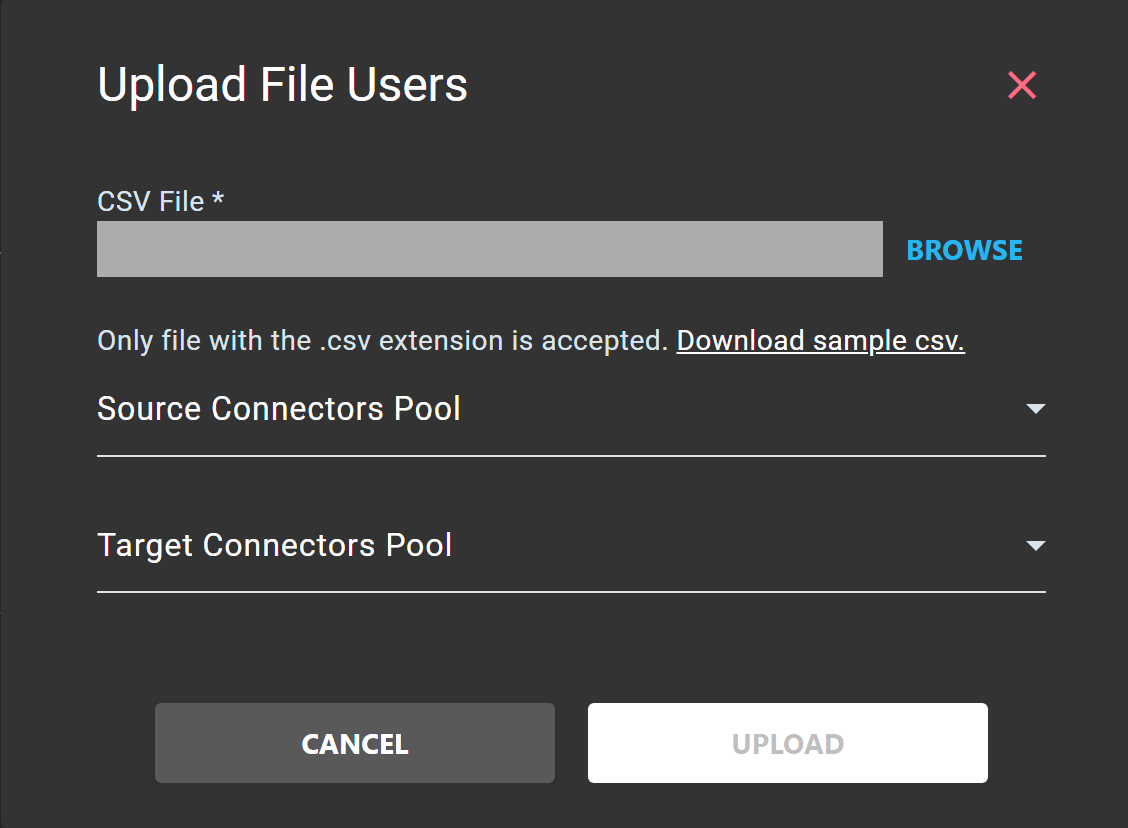
CSV File
Click on BROWSE to select your CSV file. You can click Download sample csv to get a template file.
Source Connectors Pool
Select the Exchange On-Premises source connector.
Target Connectors Pool
Select the target connector (Microsoft 365 or Google Workspace).
Option 3: Create Manual Entry
Click on MANAGE > Create to manually add individual users. Enter the source Exchange email address and the target email address for each user.
Run Audit (Recommended)
Before migrating, run an Audit task to assess mailbox sizes and identify potential issues:
Select Users
Select the users you want to audit using the checkboxes.
Start Audit
Click MIGRATION > Audit to start the audit process.
Review Results
Check the audit results to see mailbox sizes, item counts, and any errors.
Execute Migration
Once you have reviewed the audit results, you can start the migration:
Select Users or Batches
Select the users you want to migrate. You can migrate all users at once or create batches for phased migration.
Start Migration
Click MIGRATION > Start to begin the migration process.
Monitor Progress
Monitor the migration progress in the dashboard. You can see the status of each user and any errors that occur.
Delta Migration (Recommended)
Run a delta migration to sync any new items created since the initial migration. Click MIGRATION > Start again to perform incremental sync.
Frequently Asked Questions
What Exchange versions does Cloudiway support?
Cloudiway supports Exchange Server 2010, 2013, 2016, and 2019 with Exchange Web Services (EWS) enabled.
Does Exchange need to be internet-accessible?
Yes, the Exchange Web Services (EWS) endpoint must be accessible from the internet for Cloudiway to connect. The URL typically looks like: https://your-exchange-server/EWS/Exchange.asmx
What permissions does the migration account need?
For impersonation mode, the migration account needs the ApplicationImpersonation role. For delegation mode, it needs Full Access rights to each mailbox being migrated.
Can I migrate LegacyExchangeDN?
Yes, there is a global task named "Transfer X500" under the mail migration tool that reads all the legacyExchangeDN at the source and migrates them to the proxyAddresses in Microsoft 365.
How do I set up email forwarding during migration?
During a coexistence migration scenario, you need to set up forwarding to ensure migrated and non-migrated users can communicate. See our forwarder guide for instructions.
Get a free audit of your migration project from our experts.