
AI Readiness Assessment User Guide
This guide shows you how to assess your Microsoft 365 environment for safe Copilot deployment using the AI Readiness Assessment platform.
Overview
The AI Readiness Assessment is a comprehensive security and governance audit that prepares your Microsoft 365 environment for safe Microsoft Copilot deployment. It scans your entire M365 tenant to identify risks, exposure points, and security gaps—then provides a clear, actionable roadmap to achieve Copilot readiness.
The assessment answers critical questions:
- How many anonymous sharing links exist across SharePoint and OneDrive?
- Which sensitive files are accessible to "Everyone"?
- Are there admin accounts without MFA?
- Which mailboxes are forwarding emails externally?
- How many dormant guest accounts have access to your data?
Looking for the Copilot Readiness Solution?
Discover how to prepare your organization for safe Microsoft Copilot deployment.
View Solution PagePrerequisites
To run the AI Readiness Assessment, you need the following:
Global Administrator
A Microsoft 365 Global Administrator account to grant admin consent
Cloudiway Account
An active Cloudiway platform account with assessment license
Microsoft 365 License
Microsoft 365 E3/E5, Business Premium, or Office 365 E3/E5
Required API Permissions
The following application permissions are requested during admin consent:
Microsoft Graph
| Permission | Description |
|---|---|
User.Read.All | Read all users' full profiles |
UserAuthenticationMethod.Read.All | Read all users' authentication methods |
Group.Read.All | Read all groups |
TeamMember.Read.All | Read the members of all teams |
Sites.Read.All | Read items in all site collections |
Files.Read.All | Read files in all site collections |
MailboxSettings.Read | Read all user mailbox settings |
Directory.Read.All | Read directory data |
Organization.Read.All | Read organization information |
Policy.Read.All | Read your organization's policies |
AuditLog.Read.All | Read all audit log data |
Reports.Read.All | Read all usage reports |
InformationProtectionPolicy.Read.All | Read all published labels and label policies |
Application.Read.All | Read all applications |
DelegatedPermissionGrant.Read.All | Read all delegated permission grants |
RoleManagement.ReadWrite.Directory | Read and write all directory RBAC settings |
DeviceManagementApps.Read.All | Read Microsoft Intune apps |
ExternalConnection.Read.All | Read all external connections |
SharePointTenantSettings.Read.All | Read SharePoint tenant settings |
Office 365 Exchange Online
| Permission | Description |
|---|---|
Exchange.ManageAsApp | Manage Exchange as Application |
full_access_as_app | Use Exchange Web Services with full access to all mailboxes |
SharePoint
| Permission | Description |
|---|---|
Sites.FullControl.All | Have full control of all site collections (required for Restricted Content Discoverability to scan sites with restricted access) |
RoleManagement.ReadWrite.Directory permission is required to assign the Exchange Administrator role to the application service principal, enabling Exchange Online scanning. The Cloudiway application is registered in your Entra ID and can be removed at any time after the assessment is complete.
What is Scanned
The AI Readiness Assessment performs a comprehensive scan across all major Microsoft 365 workloads:
Scan Details by Workload
Microsoft Teams
- Teams with high-risk items
- Shadow users and groups
- Guest users in Teams
- Teams without available owners
- Private and shared channels
- Chat Files folders with high exposure
SharePoint Online
- Site collections with external users
- Sites with anonymous sharing links
- "Everyone" and "Everyone except external" shares
- Broken permission inheritance
- Old files ratio analysis
OneDrive for Business
- OneDrives shared with external users
- Anonymous link exposure
- Files shared with "Everyone"
- Organization-wide sharing links
Microsoft 365 Groups
- Public groups (should be private)
- Groups with guest members
- Groups with shadow users
- Ownerless groups
- Groups without sensitivity labels
Exchange Online
- Mailboxes with external forwarding
- Suspicious inbox rules
- Full access delegates
- Calendar delegation risks
Entra ID (Azure AD)
- Admin accounts without MFA
- Dormant guest accounts (90+ days)
- Guest users with edit permissions
- Conditional Access gaps
Microsoft Purview
- Sensitive files without labels
- DLP policy coverage
- Unprotected financial/PII data
Step 1: Create Project
To begin the assessment, create a new project in the Cloudiway platform.
Log in to Cloudiway
Navigate to compass.cloudiway.com and sign in with your Cloudiway account.
Create New Project
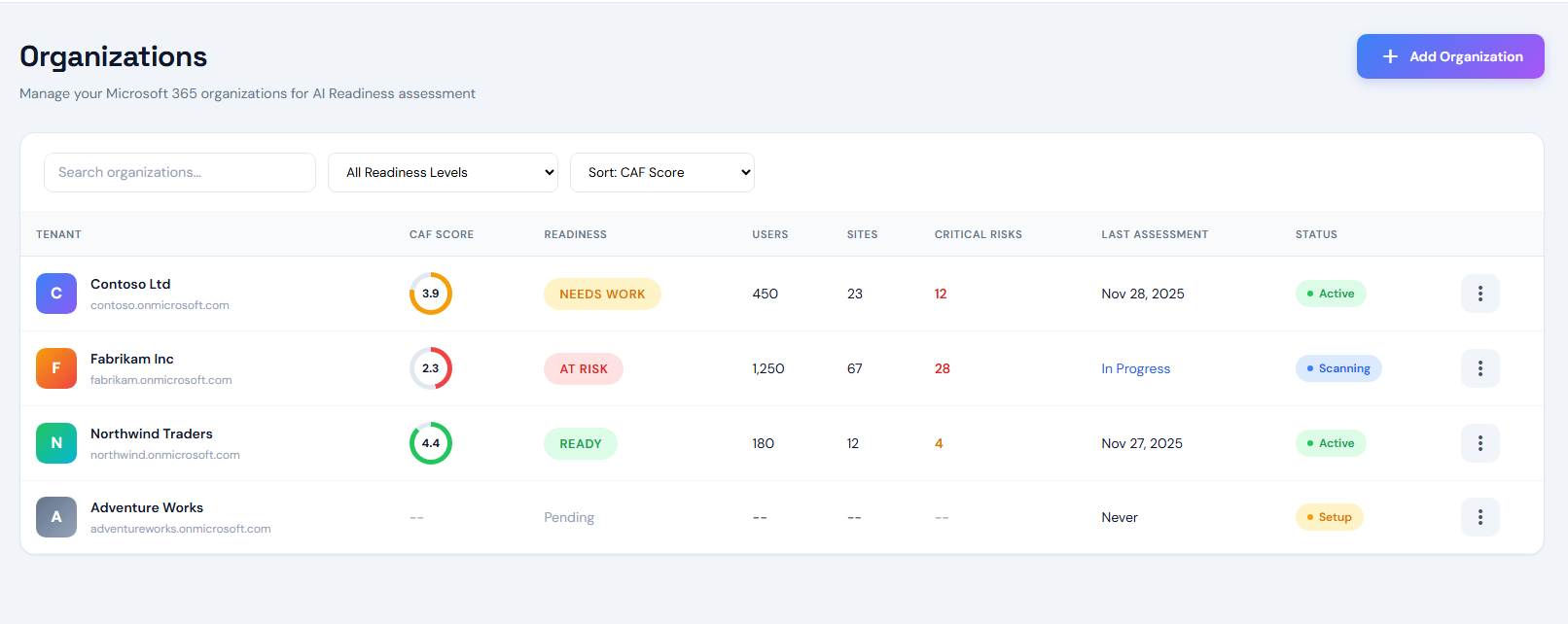
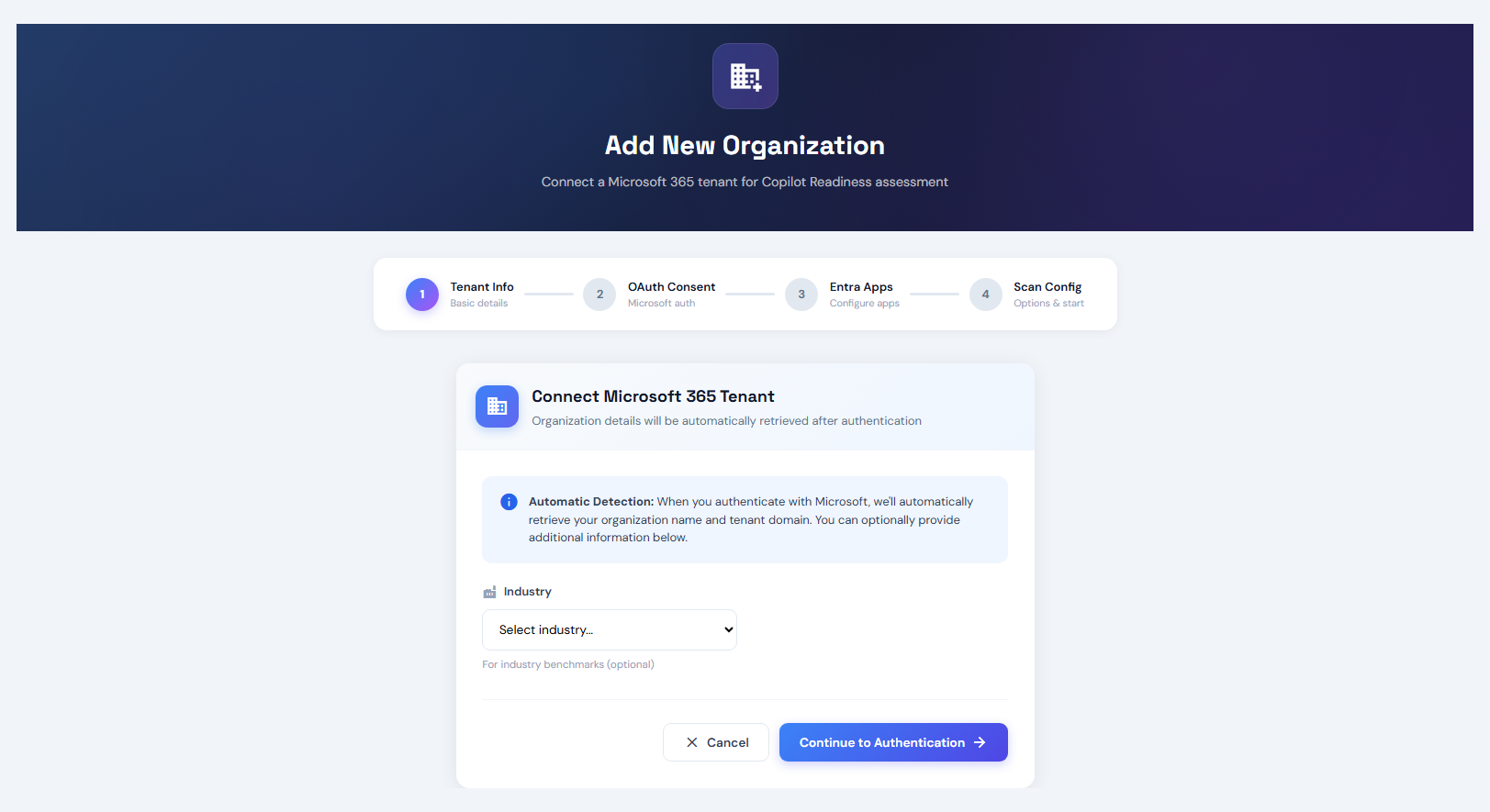
Click Add Organization, select your industry type and click Continue to Authentication.
Sign In with Microsoft
Sign in to Microsoft with a global administrator account.
This is required to install the Entra ID applications automatically.

Step 2: Run Assessment
Once the Entra ID applications are installed, the assessment process begins automatically.
Automatic Discovery
As soon as the applications are installed and permissions are granted, the Discovery phase starts automatically. This phase inventories all your Microsoft 365 resources: users, groups, Teams, SharePoint sites, OneDrive accounts, and more.
Wait for Discovery to Complete
Monitor the Discovery progress in the dashboard. The duration depends on your tenant size. You will see the number of discovered items for each workload.
Launch Assessment
Once Discovery is complete, click Start Assessment to begin the deep scan. The assessment analyzes permissions, sharing settings, and security configurations across all discovered resources.
Monitor Progress
Click on the organization row in the dashboard to follow the scan progress in real-time. The detailed view shows:
- Current scan phase (Discovery, Scanning, Analysis)
- Number of items processed per workload
- Estimated completion progress
- Any errors or warnings encountered

Step 3: Review Results
Once the assessment is complete, you can explore your results through three main views:
Scan Results
When the assessment completes, the dashboard displays your overall results:
- CAF Score — Your Copilot readiness score from 1.0 to 5.0
- Readiness Level — Ready, Needs Work, or At Risk status
- Risks Summary — Count of Critical, High, Medium, and Low risks
- Environment Scope — Number of users, sites, Teams, and groups scanned
Organization Scan Report
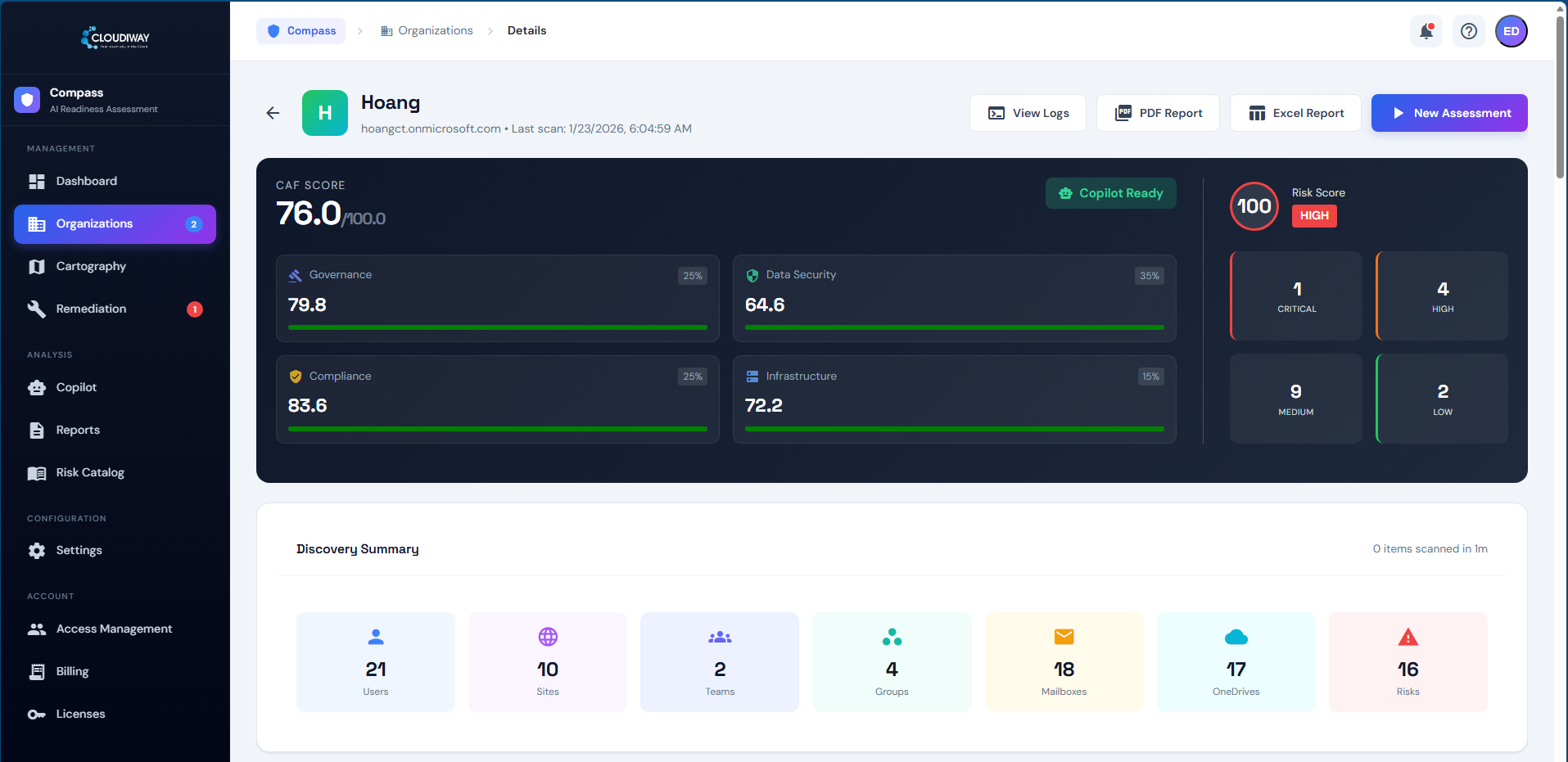
Click on the organization row in the dashboard to open the detailed scan report. This view displays:
- CAF Score — Overall readiness score with breakdown by pillar
- Discovery Summary — Count of scanned resources (sites, teams, users, mailboxes)
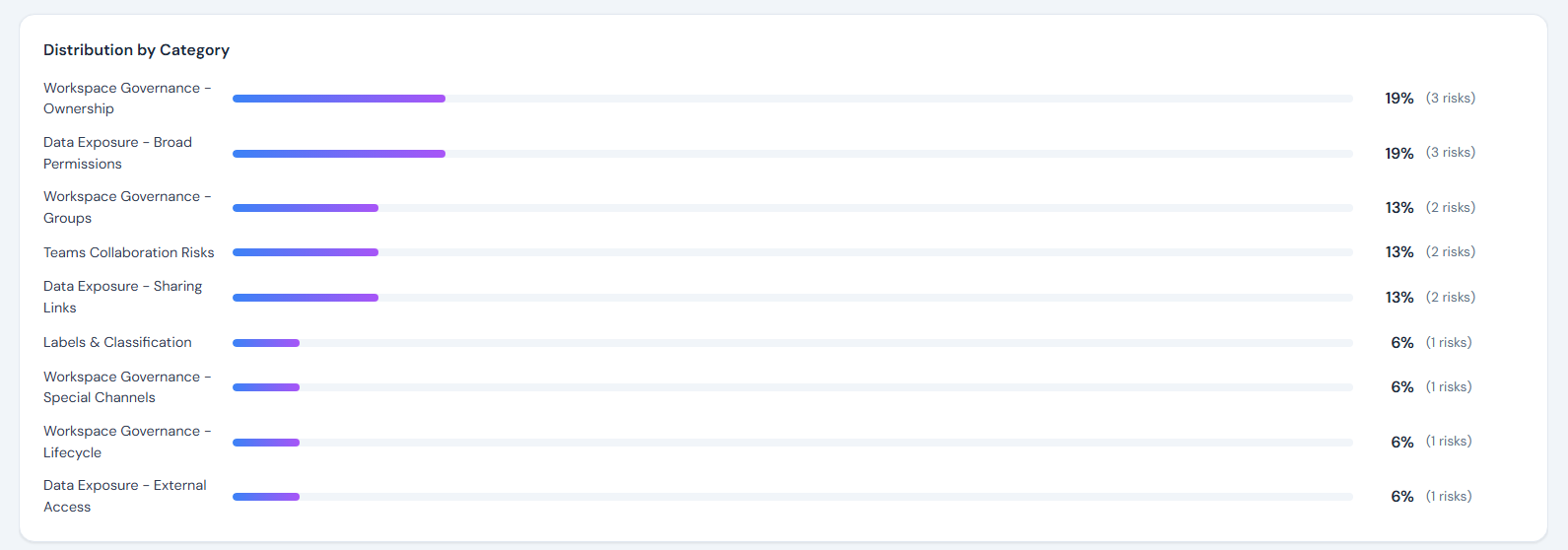
- Distribution by Category — Risk distribution across security categories
Detected Risks
Below the summary, the report displays the complete list of detected risks, organized by severity and impact score:
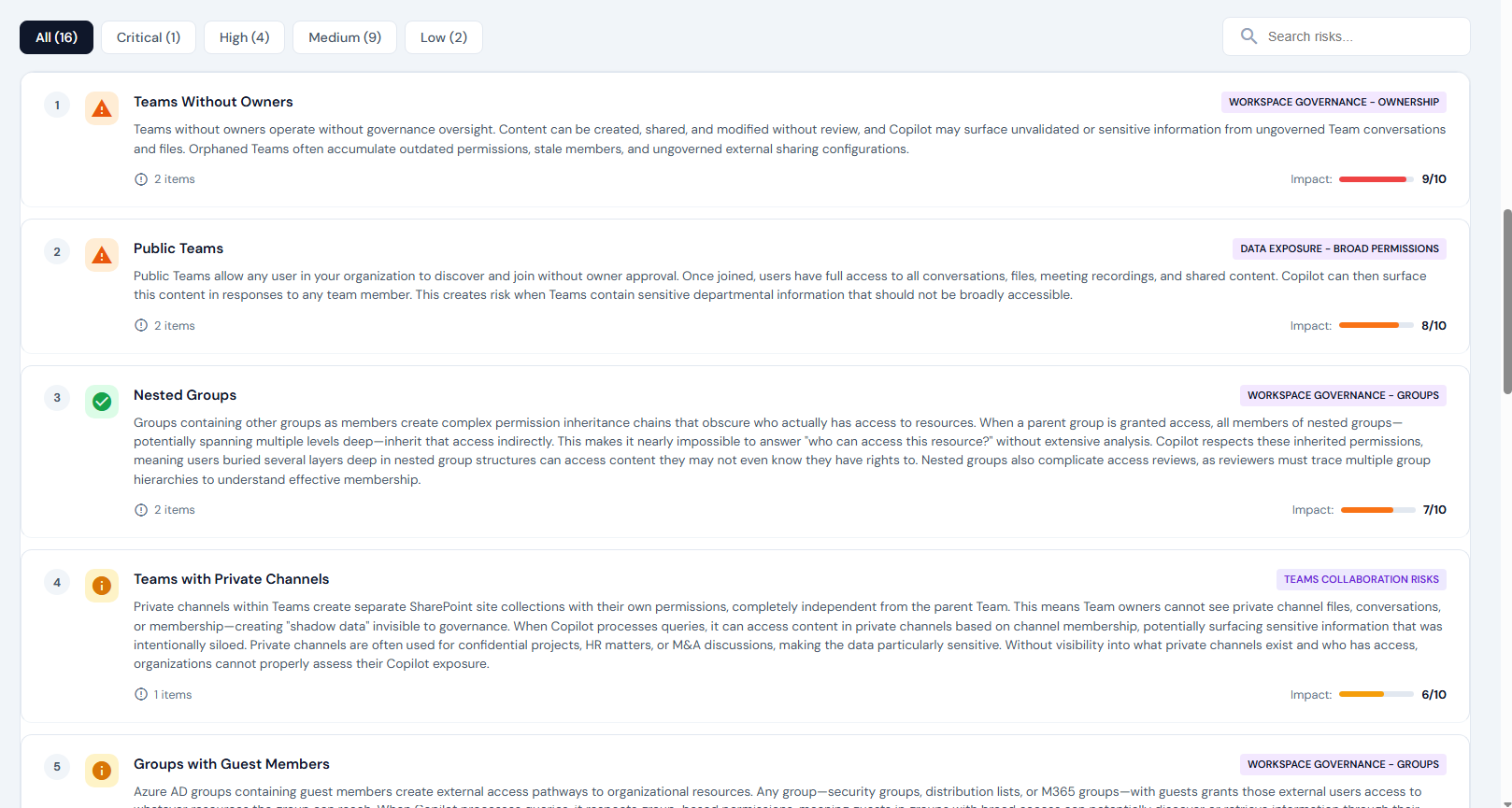
CAF Score Breakdown
The CAF Score (Cloud Adoption Framework) measures your Copilot readiness across four weighted pillars:
| Pillar | Weight | What is Assessed |
|---|---|---|
| Governance | 25% | Access controls, policies, permissions management, administrative oversight |
| Data Security | 35% | Data classification, sensitivity labels, encryption, external sharing controls |
| Compliance | 25% | Regulatory alignment, audit trails, retention policies, eDiscovery readiness |
| Infrastructure | 15% | Identity management, device security, network configuration, service health |
Score Interpretation
| Score | Status | Meaning |
|---|---|---|
| 4.5 - 5.0 | Copilot Ready | Safe to deploy Copilot with minimal risk |
| 4.0 - 4.4 | Minor Gaps | Address a few issues before deployment |
| 3.5 - 3.9 | Needs Improvement | Remediation required (2-4 weeks) |
| < 3.5 | At Risk | Significant work needed before Copilot |
Cartography
The Cartography view provides a complete mapping of your Microsoft 365 environment with key metrics and data exposure indicators:
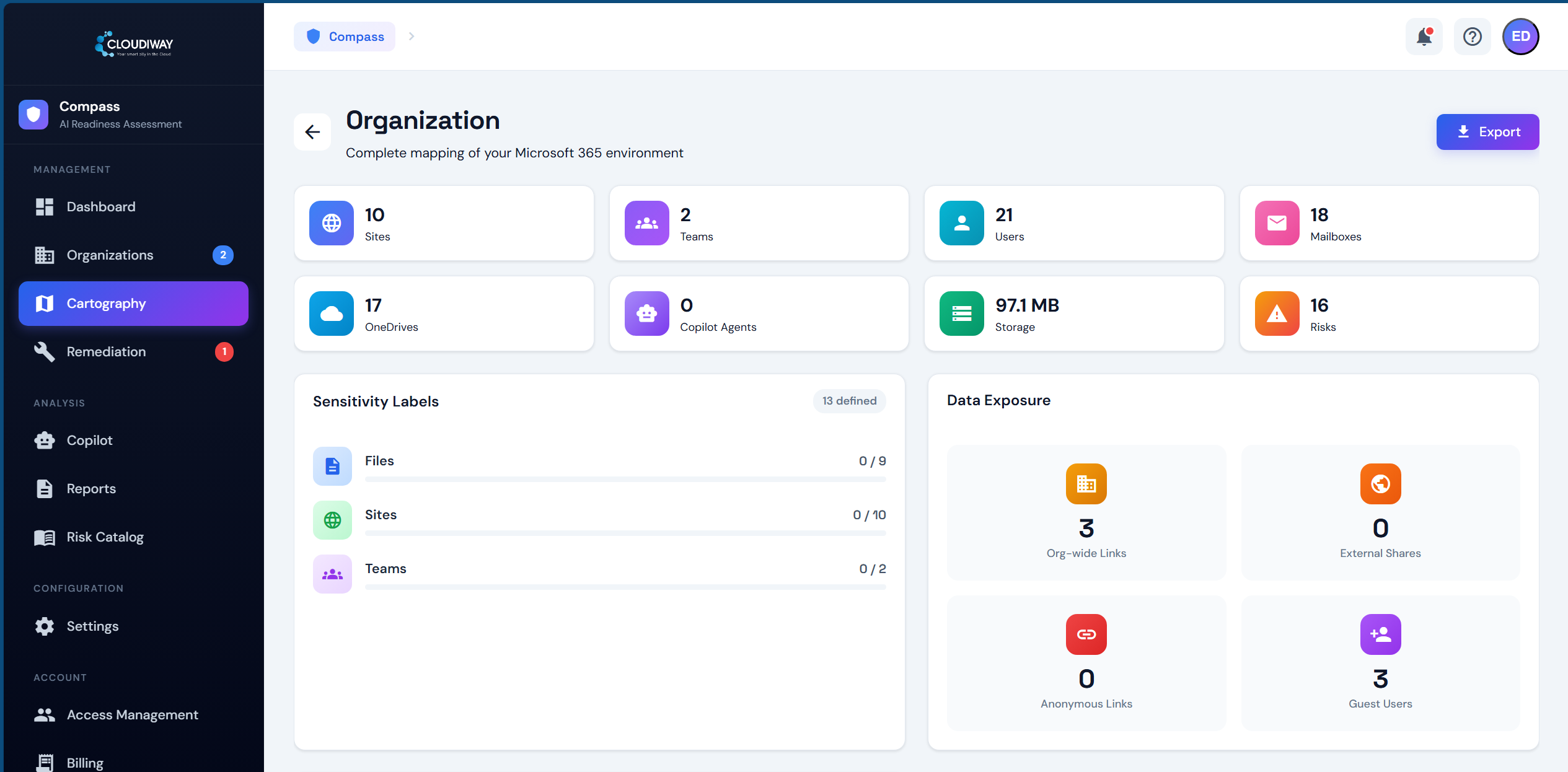
Environment Overview
- Sites — Total SharePoint site collections discovered
- Teams — Number of Microsoft Teams in your tenant
- Users — Total user accounts including guests
- Mailboxes — Exchange Online mailboxes scanned
- OneDrives — OneDrive for Business accounts
- Storage — Total storage used across all workloads
- Risks — Number of detected security risks
Sensitivity Labels
Shows the coverage of Microsoft Purview sensitivity labels across your files, sites, and Teams. Low coverage indicates unclassified data that Copilot could expose.
Data Exposure
- Org-wide Links — Links shared with everyone in your organization
- External Shares — Content shared with external users
- Anonymous Links — Public links accessible without authentication
- Guest Users — External guests with access to your data
Remediation
The Remediation view is your central hub for tracking and executing fixes for all detected risks. It provides an actionable, prioritized task list with direct links to remediate issues in your Microsoft 365 environment.
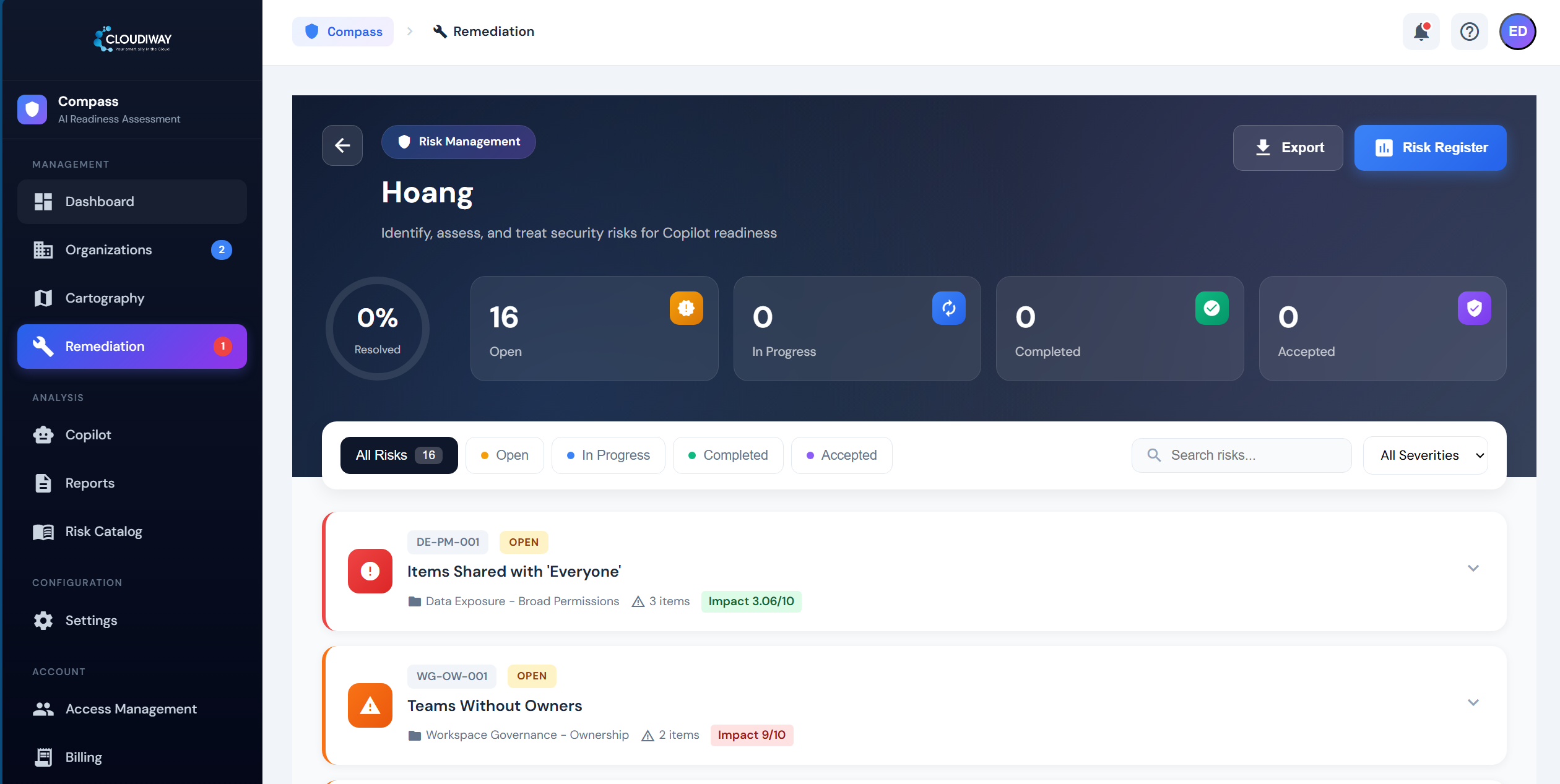
Risk Tracking
Each risk can be assigned a status to reflect your remediation progress:
- Open — Risk has been identified and requires attention
- In Progress — Remediation work has started
- Completed — Risk has been remediated and verified
- Accepted — Risk acknowledged but accepted (with justification)
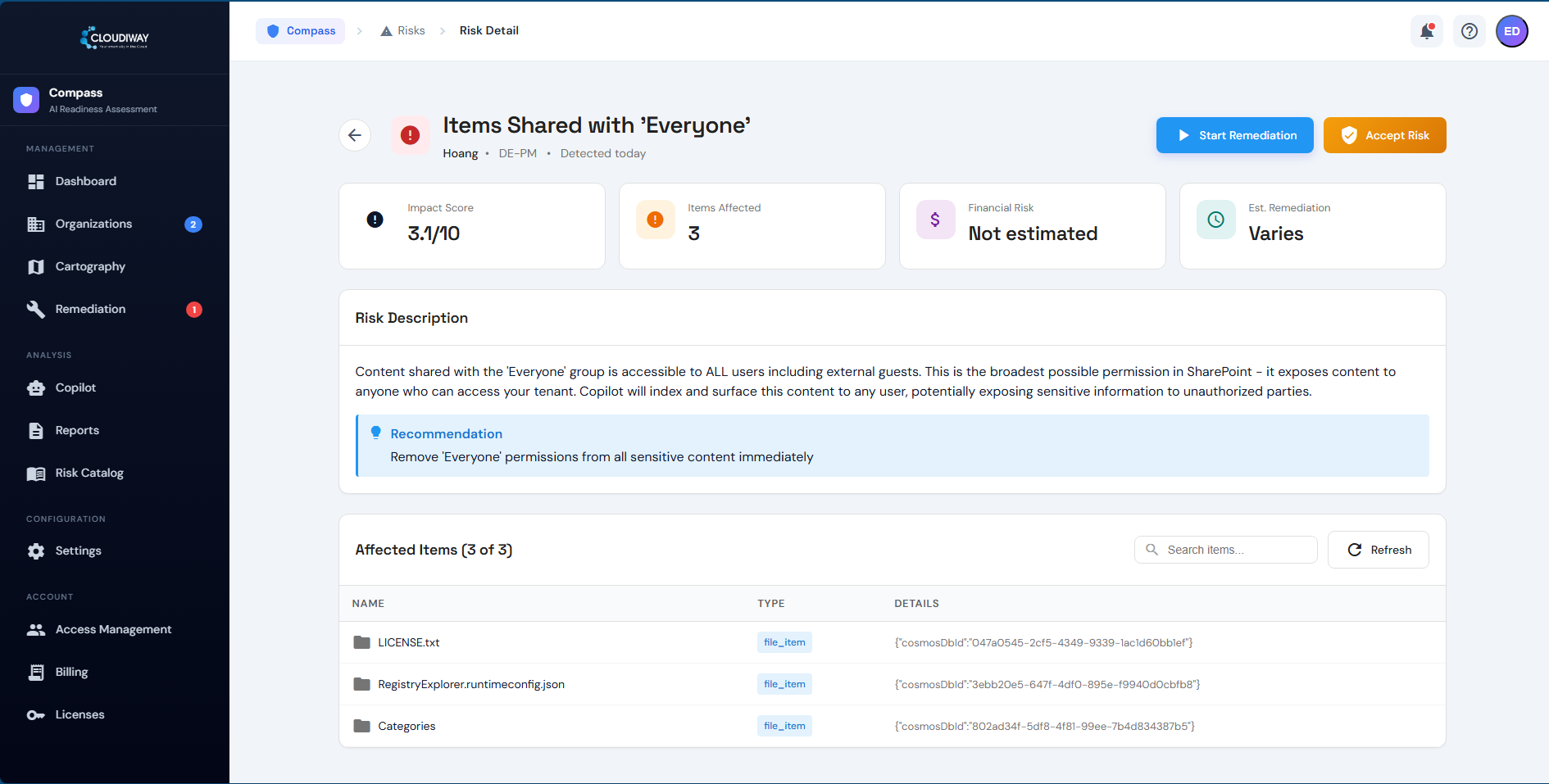
Click on any risk to expand its details, view the description, affected items, and recommendations. Use the Start Remediation button to begin working on a risk, or Accept Risk if you've determined it's acceptable for your organization.
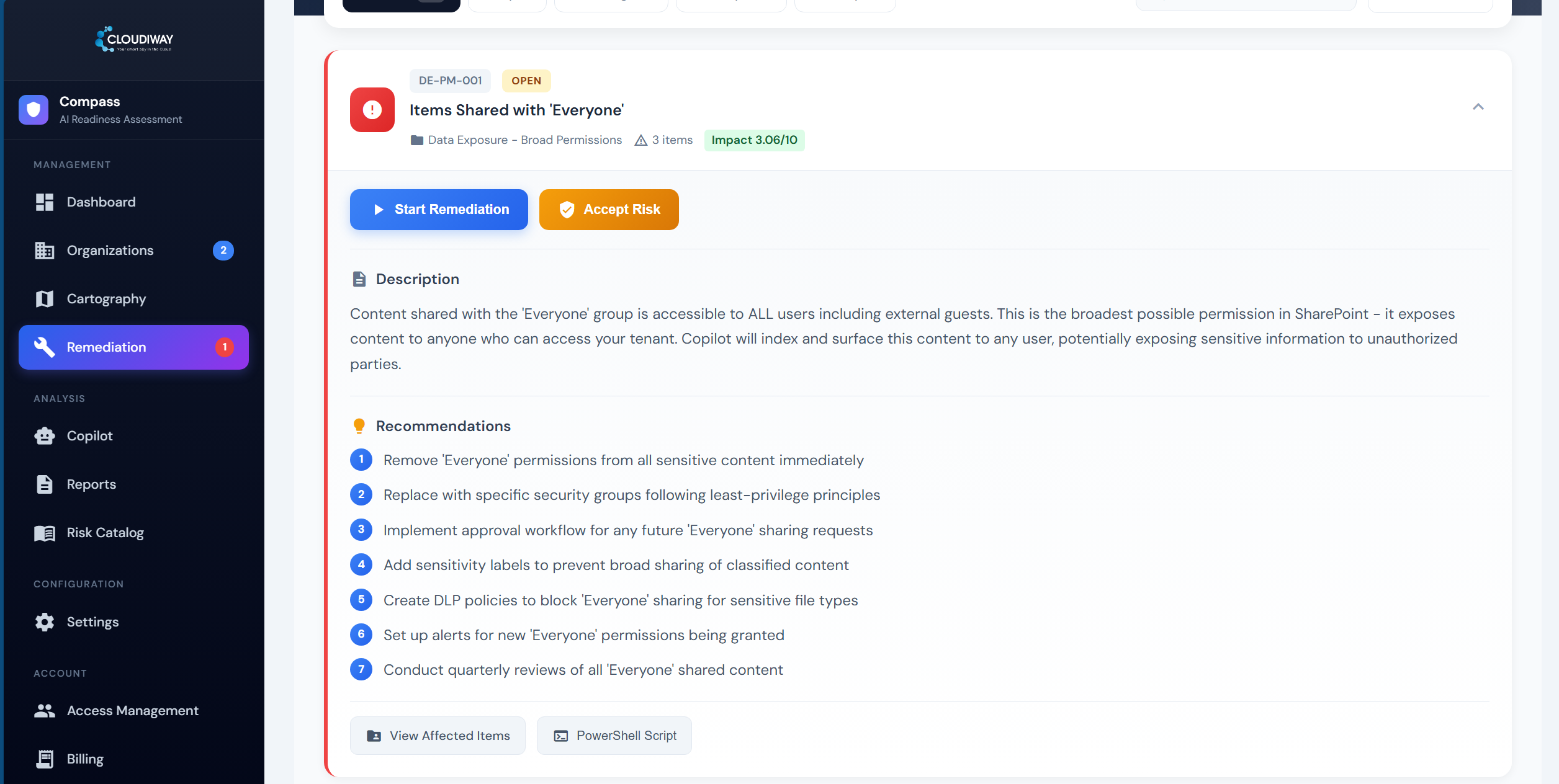
Affected Items
Click View Affected Items to see the full list of resources impacted by the detected risk:
PowerShell Scripts
Each risk includes a PowerShell Script button that provides example remediation scripts. These scripts illustrate how the issue could be fixed programmatically.
Prioritization Strategy
We recommend following this prioritization for remediation:
Week 1-2: Critical Security Fixes
- Enable MFA for all admin accounts
- Remove anonymous sharing links
- Disable external forwarding rules
- Revoke dormant guest accounts (90+ days inactive)
- Review and fix suspicious inbox rules
Expected Impact: CAF Score improvement of +0.5 to +0.8
Week 3-4: Governance & Data Protection
- Apply sensitivity labels to unclassified sensitive files
- Convert public groups to private
- Assign owners to ownerless Teams and Groups
- Reset broken permission inheritance
- Review OneDrive "Everyone" shares
Expected Impact: CAF Score improvement of +0.3 to +0.5
Reports
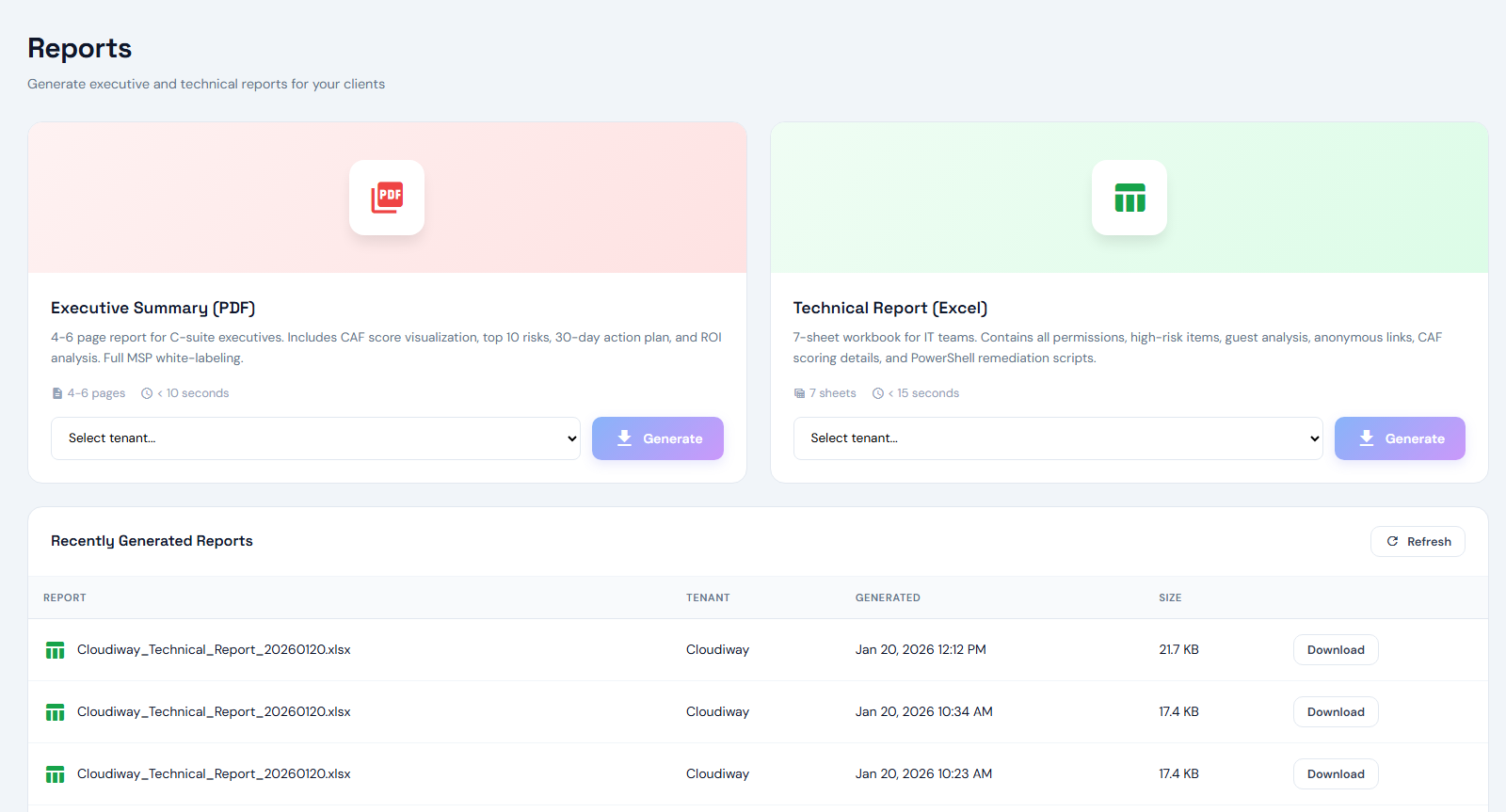
Generate and download assessment reports from the Reports view. Available report formats:
- Executive Report (PDF) — High-level summary for stakeholders and management
- Technical Report (PDF) — Detailed findings with technical remediation steps
- Risk Inventory (Excel) — Complete list of detected risks for analysis
- Remediation Plan (Excel) — Actionable task list with priorities
Executive Summary Report (PDF)
The Executive Summary is a 6-page PDF report designed for executives, managers, and stakeholders who need a clear, non-technical overview to make informed decisions about Copilot deployment. It includes:
| Section | Content |
|---|---|
| Cover Page | Organization name, CAF Score, Readiness Level (Ready/Needs Work/At Risk), total risks identified, environment scope (users, sites, teams, groups) |
| Executive Summary | Key findings, Business Impact Assessment table (Critical/High/Medium/Low risks with impact description), Go/No-Go recommendation for Copilot deployment |
| CAF Score Breakdown | Score per pillar (Governance, Data Security, Compliance, Infrastructure) with visual gauges and score interpretation guide |
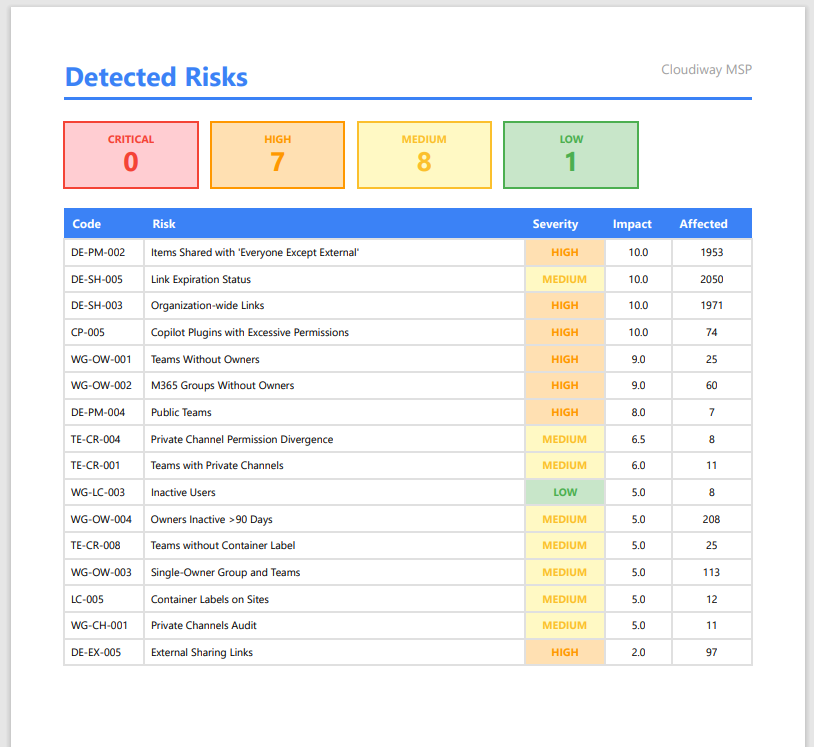
| Detected Risks | Complete risk inventory table with code, description, severity, impact score, and number of affected items |
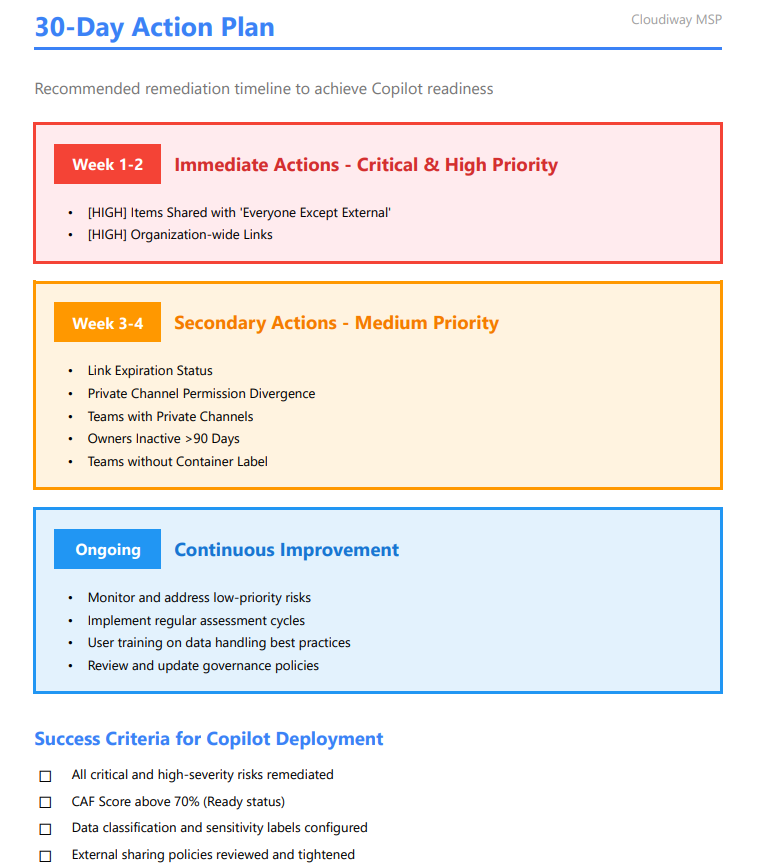
| 30-Day Action Plan | Week 1-2 immediate actions, Week 3-4 secondary actions, ongoing improvements, and success criteria checklist |
| ROI Analysis & Next Steps | Business value (risk reduction, productivity gains, compliance), recommended next steps, and contact information |
Understanding Risks
The AI Readiness Assessment detects 50+ types of risks across multiple categories. Here are the most critical ones:
Critical Severity Risks
| Risk | Impact | Category |
|---|---|---|
| Administrators without MFA | 10.0/10 | Entra ID |
| Anonymous sharing links | 9.5/10 | SharePoint/OneDrive |
| Mailboxes forwarding externally | 9.0/10 | Exchange |
| Teams/Groups without owners | 9.0/10 | Teams/Groups |
High Severity Risks
| Risk | Impact | Category |
|---|---|---|
| Sensitive files without labels | 8.5/10 | Purview |
| Public Microsoft 365 Groups | 8.0/10 | Groups |
| Shared channels with external tenants | 8.5/10 | Teams |
| Dormant guest accounts (90+ days) | 7.5/10 | Entra ID |
Workload-Specific Views
Navigate to individual workload views to see risks specific to each area:
Frequently Asked Questions
What is the CAF Score?
The CAF Score (Cloud Adoption Framework Score) is a readiness benchmark rated from 1.0 to 5.0, calculated across four weighted pillars: Data Security (35%), Governance (25%), Compliance (25%), and Infrastructure (15%). A score of 4.5 or higher indicates your environment is ready for safe Copilot deployment.
Does the assessment modify my Microsoft 365 data?
No. The AI Readiness Assessment uses read-only application permissions. We never modify, delete, or write any data in your Microsoft 365 environment. The assessment is completely non-invasive and safe to run in production environments.
How long does the assessment take?
The automated scan typically completes within 24-48 hours depending on your tenant size. Small tenants (under 500 users) often complete within a few hours. You will receive an email notification when results are ready.
What Microsoft 365 licenses are supported?
The AI Readiness Assessment supports all Microsoft 365 and Office 365 enterprise plans including E3, E5, Business Basic, Business Standard, and Business Premium. GCC and GCC High tenants are also supported.
Can I exclude specific sites or users from the scan?
Yes. You can configure exclusion rules before starting the assessment. Common exclusions include legal hold sites, HR sites, or specific user OneDrives. Exclusions can be configured in the scan options.
How do I remove the Cloudiway application after the assessment?
You can remove the Cloudiway application from your tenant at any time by navigating to Entra ID > Enterprise Applications, finding "Cloudiway AI Readiness", and clicking Delete. This will revoke all permissions.
What happens after I complete the remediation?
After completing remediation, you can run a follow-up assessment to verify improvements. If your CAF Score reaches 4.5 or higher, you can proceed with Copilot deployment. Cloudiway also offers Copilot pilot planning services to help with the rollout.
Get a comprehensive analysis of your Microsoft 365 environment and a clear roadmap to safe Copilot deployment.