
Google Drive to Google Drive Migration Guide
This guide shows you how to migrate Google Drive files between two Google Workspace tenants. Migrate My Drive files, folders, permissions, and metadata.
Overview
This Google Drive to Google Drive Migration Guide shows you how to migrate files between two Google Workspace tenants (cross-tenant file migration).
Cloudiway uses Google Drive APIs to read data from the source tenant and write data to the target tenant. All network operations are performed over TLS 1.2.
Looking for our Google Workspace Migration Solution?
Discover all features, pricing, and use cases for Google Workspace cross-tenant migrations.
View Solution PagePrerequisites
To perform the Google Drive to Google Drive migration, you need admin access to both tenants.
Source Google Workspace Requirements
Super Admin Account
A Google Workspace Super Admin account for the source tenant
Service Account
A Google Service Account with domain-wide delegation (Cloudiway can create this automatically)
Target Google Workspace Requirements
Super Admin Account
A Google Workspace Super Admin account for the target tenant
Target Accounts Created
User accounts must be created in the target tenant before migration
Service Account
A Google Service Account with domain-wide delegation for the target tenant
What is Migrated
The following items are migrated during a Google Drive to Google Drive migration:
Limitations
The following items are not migrated or have limitations:
- Shared Drives: Shared Drives are migrated separately. See the Shared Drives Migration Guide.
- Google Forms responses: Form responses are not migrated with the form.
- External sharing links: Anonymous sharing links are not preserved. External sharing can be optionally enabled.
- Trashed files: Files in the trash are not migrated by default.
- Shortcuts: Shortcuts to files are recreated if the target file exists.
Migration Process
The Google Drive to Google Drive migration follows these steps:
Step 1: Create Connectors
For Cloudiway to migrate your files, it needs to communicate with both Google Workspace tenants. You'll need to create two Google connectors: one for the source and one for the target.
Google Workspace Connector (Source)
Go to Connectors > New, select Google as connector type, set a connector name and select File. Click Next to configure the connector.

| Field | Description |
|---|---|
| Cloudiway Google Service Account | Use the Cloudiway-managed service account (recommended) |
| Custom Google Service Account | Expert mode - use your own Google Service Account |
| Domain Names | Your source Google Workspace domain(s) |
| Migration Account | Source Google Workspace Super Admin email address |
Google Workspace Connector (Target)
Create a second Google File connector for the target tenant using the same process.
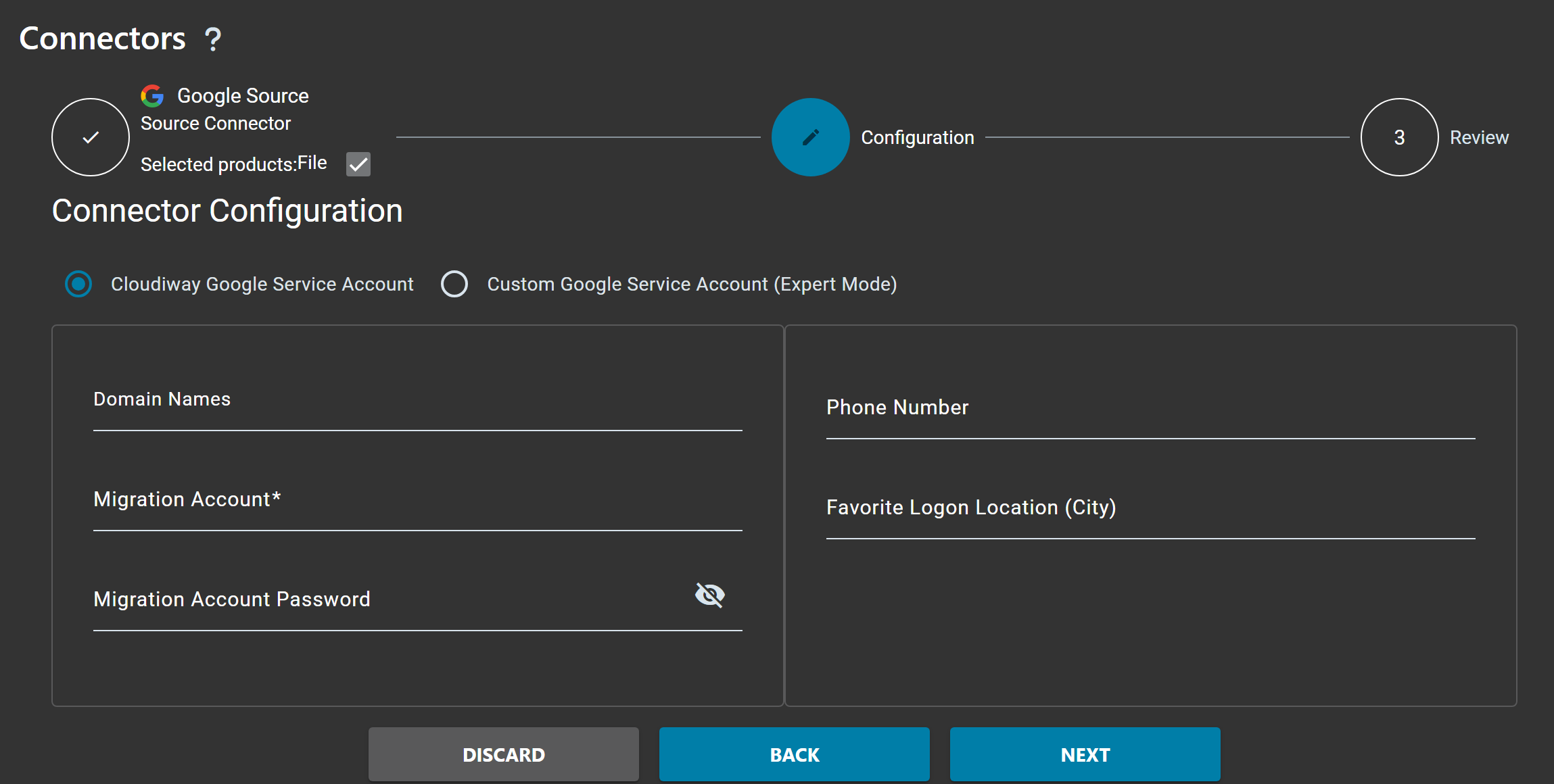
| Field | Description |
|---|---|
| Cloudiway Google Service Account | Use the Cloudiway-managed service account (recommended) |
| Custom Google Service Account | Expert mode - use your own Google Service Account |
| Domain Names | Your target Google Workspace domain(s) |
| Migration Account | Target Google Workspace Super Admin email address |
Step 2: Configure Global Settings
Navigate to Files > Global Settings to configure your migration options.
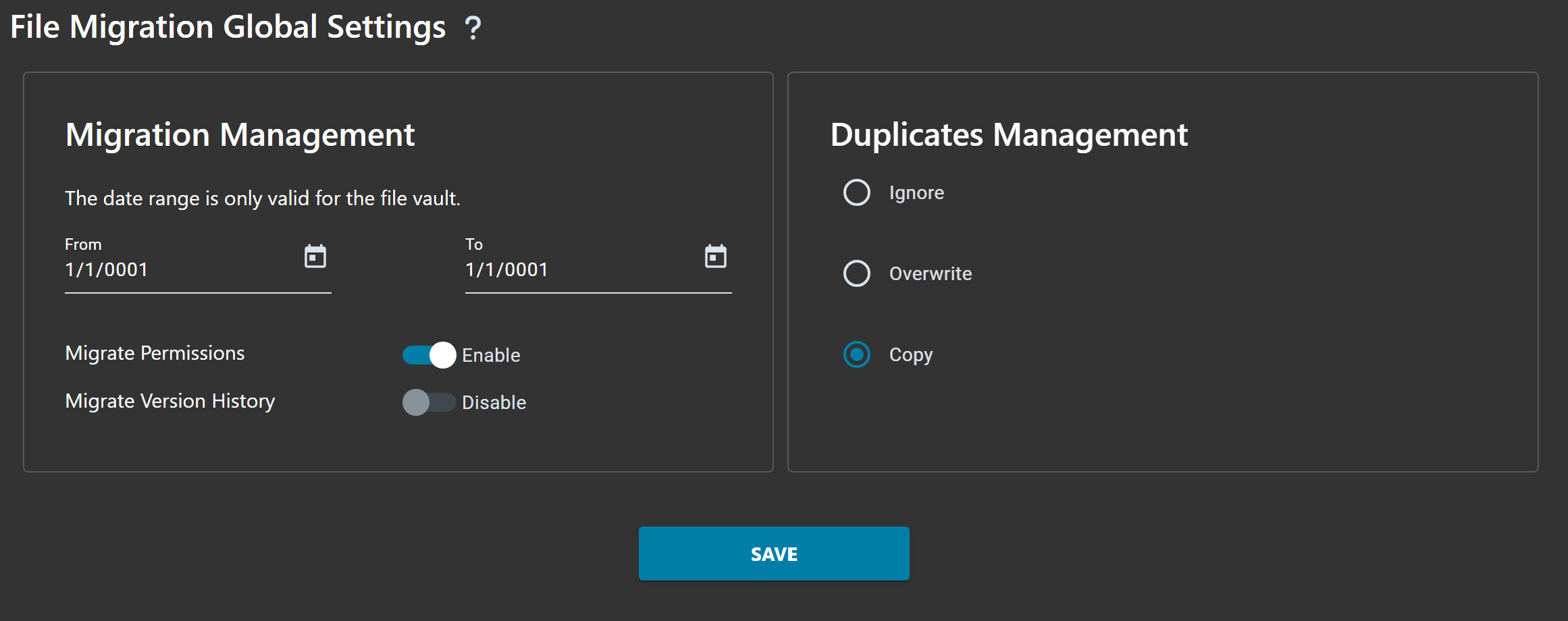
Migration Management
| Setting | Default | Description |
|---|---|---|
| Date From / Date To | Empty | Filter files by date range. The date range is only valid for file vault migrations. |
| Migrate Permissions | Enable | Migrates sharing permissions from source to target. |
| Migrate Version History | Disable | Migrates file version history (increases migration time). |
Duplicates Management
Choose how to handle files that already exist in the target:
| Option | Description |
|---|---|
| Ignore | Skip files that already exist in the target. Existing files are not updated. |
| Overwrite | Replace existing files in the target with the source version. |
| Copy | Create a copy of the file with a different name if a file already exists. (Default) |
Step 3: Fill User List
The User List contains all Google Drive accounts to migrate. There are three ways to populate it:
Option 1: Discovery (Get List)
Navigate to Files > User List and click Get List to automatically discover all users from the source tenant.
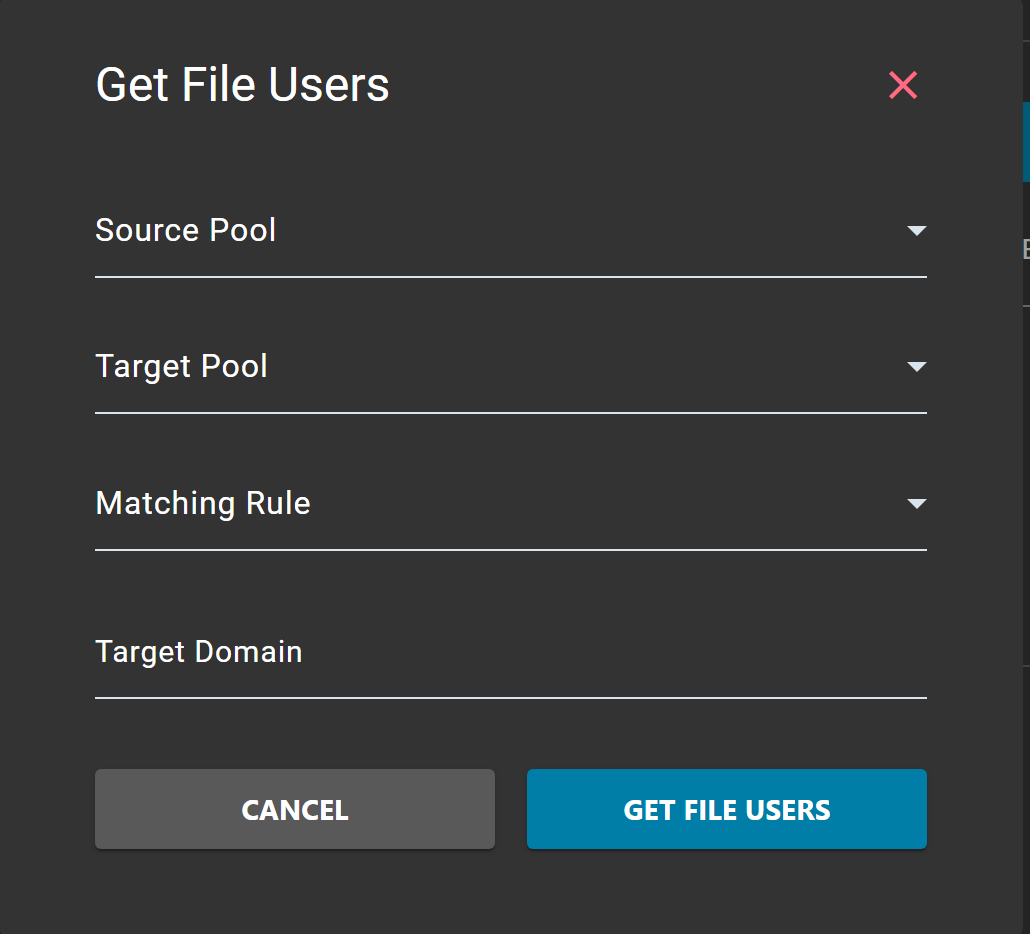
Select Source Pool
Select your Google Workspace source connector pool from the dropdown.
Select Target Pool
Select your Google Workspace target connector pool.
Configure Matching Rule
Choose how source users should be mapped to target users.
Click Get
Click the GET button to start the discovery process.
Option 2: Import User List
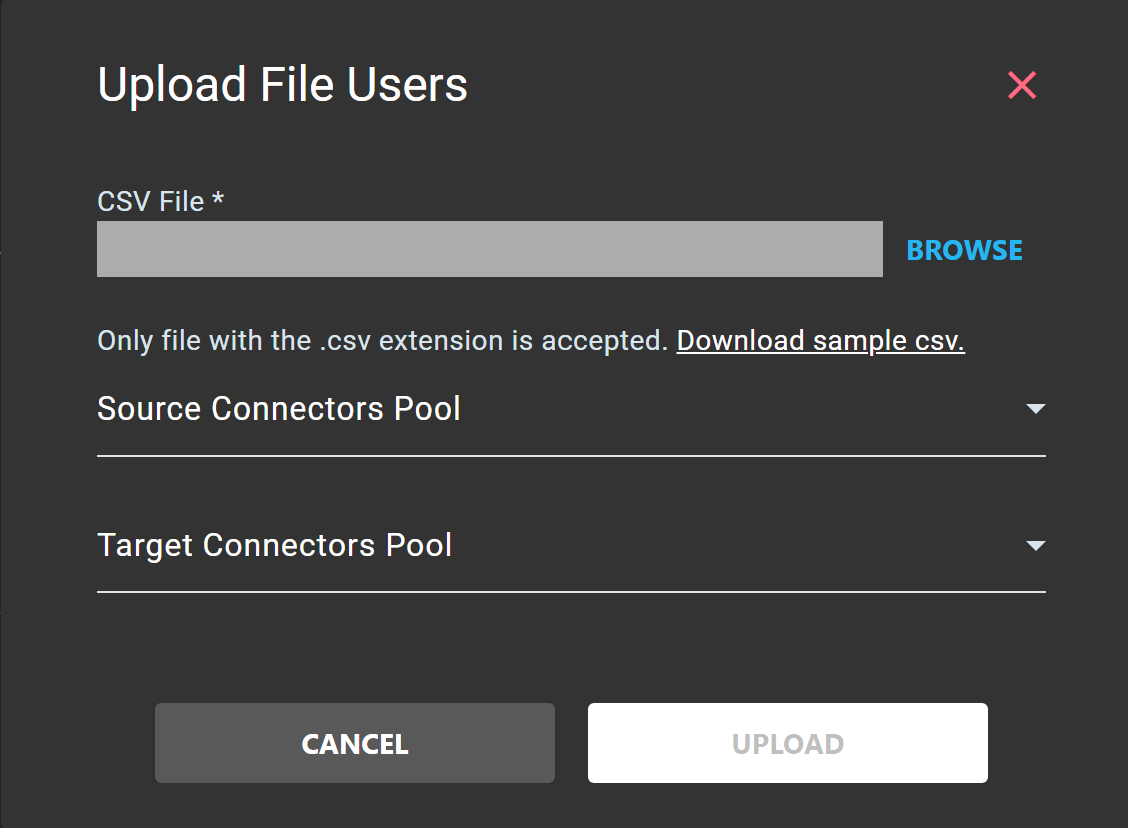
Click on User List > Import to upload a CSV file containing the users to migrate.
Step 4: Verify Mapping Table
Navigate to Settings > Mapping Table to verify that all users are correctly mapped between source and target.
Ensure that all source Google Drive accounts are correctly mapped to their corresponding target accounts.
Step 5: Run Migration
Now that you have performed all the pre-migration steps, you're ready to migrate. The migration process consists of three phases: Audit, Preprocessing, and Migration.
Step 5.1: Audit
The Audit phase analyzes the source Google Drive to collect statistics about the data to migrate.
Select Users
Under the Users tab, select the users you want to audit.
Start Audit
Click on AUDIT to start the audit process.
Review Results
Once completed, review the audit results to see file counts, total size, and any potential issues.
Step 5.2: Preprocessing
The Preprocessing phase prepares the data for migration by analyzing file structures and permissions.
Select Users
Select the users that have completed the audit phase.
Start Preprocessing
Click on PREPROCESSING to start the preprocessing phase.
Wait for Completion
The status will change to Preprocessing Success when complete.
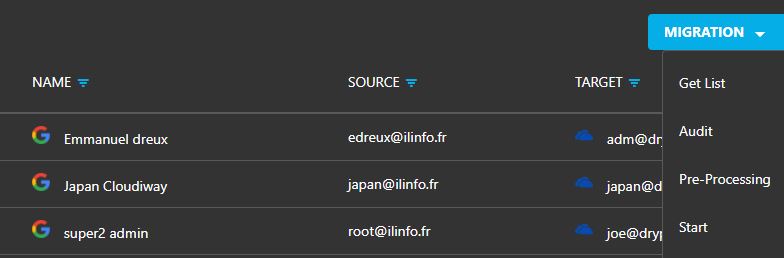
Step 5.3: Start Migration
- Under the Users tab, select all the users you want to migrate
- Click on MIGRATION
- Click the Start button
Delta Pass
Cloudiway supports delta passes for Google Drive migrations. Every time you restart the migration:
- Only files that haven't already been copied will be migrated
- Files that have been modified in the source will be updated in the target
- The platform does not duplicate files
How to Start a Delta Pass
To start a delta pass, simply restart the migration and the platform takes care of everything.
Delta Pass Limitations
- You can submit as many migration passes as you want for 3 months
- Until consuming the amount of GBs allowed by the assigned licenses
- Usually, you only need one pass before the cutover and another after the cutover
Frequently Asked Questions
Can I migrate Google Drive files between two Google Workspace tenants?
Yes, Cloudiway supports cross-tenant Google Drive migrations. You can migrate files, folders, and permissions between two different Google Workspace organizations.
Are file sharing permissions preserved during migration?
Yes, Cloudiway preserves sharing permissions during migration. Internal permissions are mapped to the target tenant, and external sharing can be optionally preserved.
Does Cloudiway support delta passes for Google Drive migration?
Yes, Cloudiway supports delta passes. After the initial migration, subsequent runs only migrate new and modified files. You can run delta passes for up to 3 months within your license quota.
Are Google Docs, Sheets, and Slides preserved?
Yes, Google native formats (Docs, Sheets, Slides, Forms, Drawings) are migrated as-is without conversion since both source and target are Google Workspace.
What about Shared Drives?
Shared Drives (Team Drives) are migrated separately using the Shared Drives migration feature. See the Shared Drives Migration Guide for details.
Get a free migration quote in minutes — entirely self-service.