
Dropbox to OneDrive Migration Guide
This guide shows you how to migrate Dropbox files and folders to OneDrive for Business. Migrate documents, permissions, folder structures, and metadata.
Overview
This Dropbox to OneDrive Migration Guide shows you how to migrate your Dropbox files and folders to OneDrive for Business using the Cloudiway platform.
Looking for our Dropbox to OneDrive Migration Solution?
Discover all features, pricing, and use cases for Dropbox to OneDrive migrations.
View Solution PageWhat's Migrated
The following items are migrated from Dropbox to OneDrive:
Limitations
The following items are not migrated or have limitations:
- Dropbox Shared Links: Shared links are not migrated and must be recreated in OneDrive.
- Dropbox Comments: File comments are not migrated to OneDrive.
- Dropbox File Requests: File request links are not migrated.
- Dropbox Integrations: Third-party app integrations are not migrated.
- External Collaborators: External users must be re-invited in OneDrive.
- Dropbox Showcase: Showcase presentations are not migrated.
Prerequisites
To perform the Dropbox to OneDrive migration, you need admin access to both platforms.
Dropbox Requirements
Dropbox Team Admin Account
A Dropbox Business Team Admin account with access to all team members' content
Dropbox Business
Dropbox Business Standard, Advanced, or Enterprise subscription for API access
Microsoft 365 Requirements
Microsoft 365 Administrator
Microsoft 365 Global Admin or SharePoint Administrator role
Entra ID Application
An Entra ID (Azure AD) Application with Application Permissions (Cloudiway can create this automatically)
OneDrive Licenses
Target users must have OneDrive licenses assigned
Migration Process
The Dropbox to OneDrive migration follows these steps:
Step 1: Create Connectors
Create connectors for both Dropbox and Microsoft 365.
Dropbox Source Connector
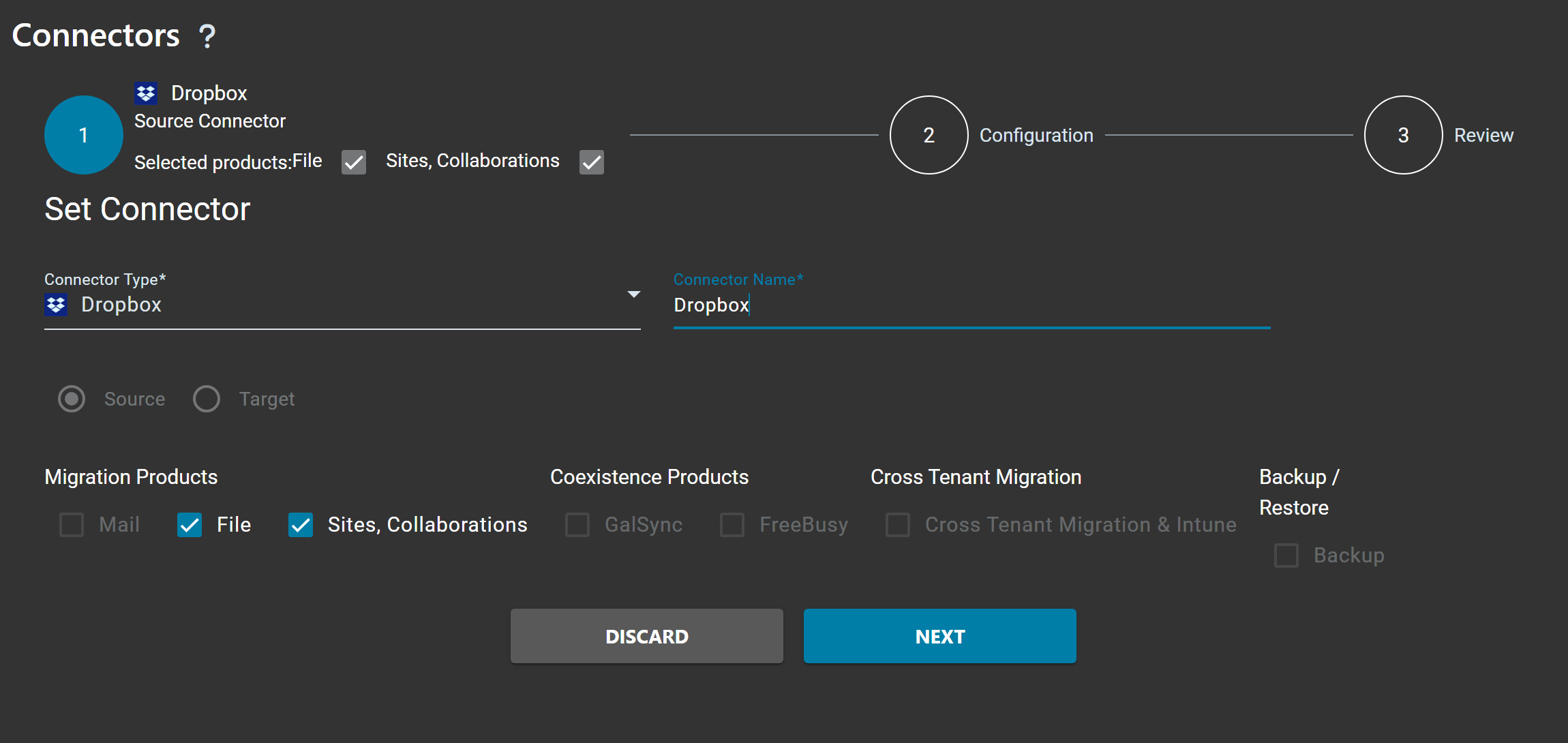
Go to Connectors > New, select Dropbox as connector type and select Files.
Click the Get Access Token button to authorize Cloudiway to access your Dropbox account.
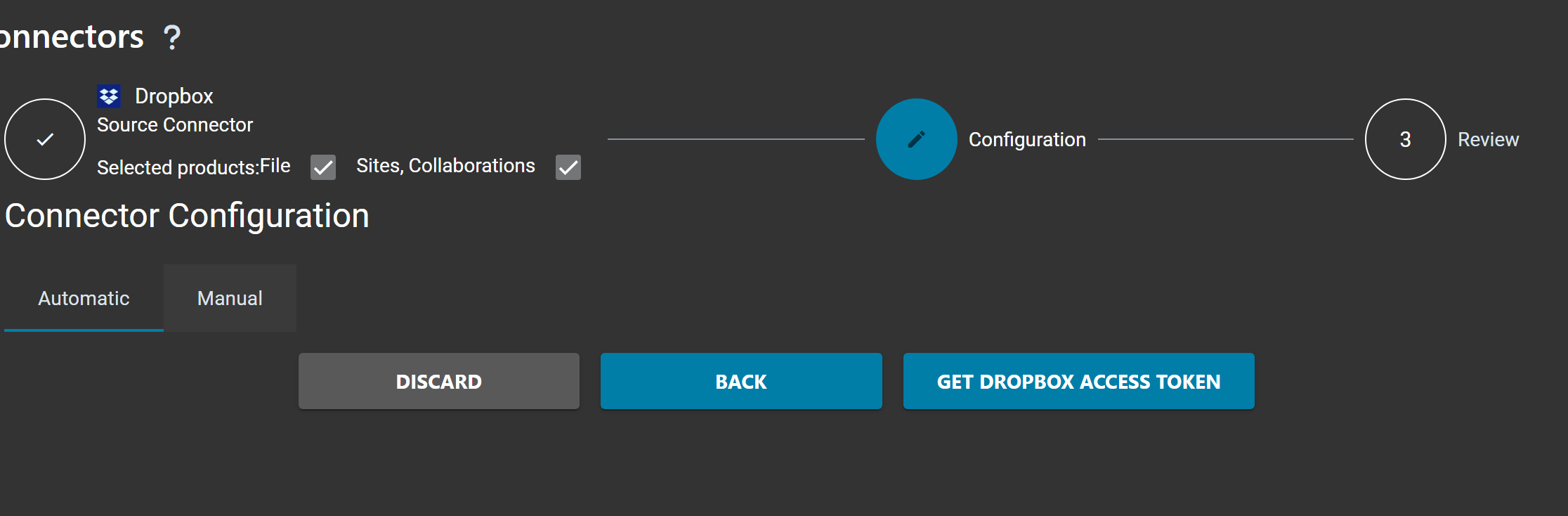
You'll be redirected to Dropbox. Log in with your administrator account and approve the permissions requested by Cloudiway.
Once authorized, your connector is created and ready to use.
Microsoft 365 Target Connector
Create a Microsoft 365 connector for the target OneDrive. Go to Connectors > New, select Microsoft 365 and Files.
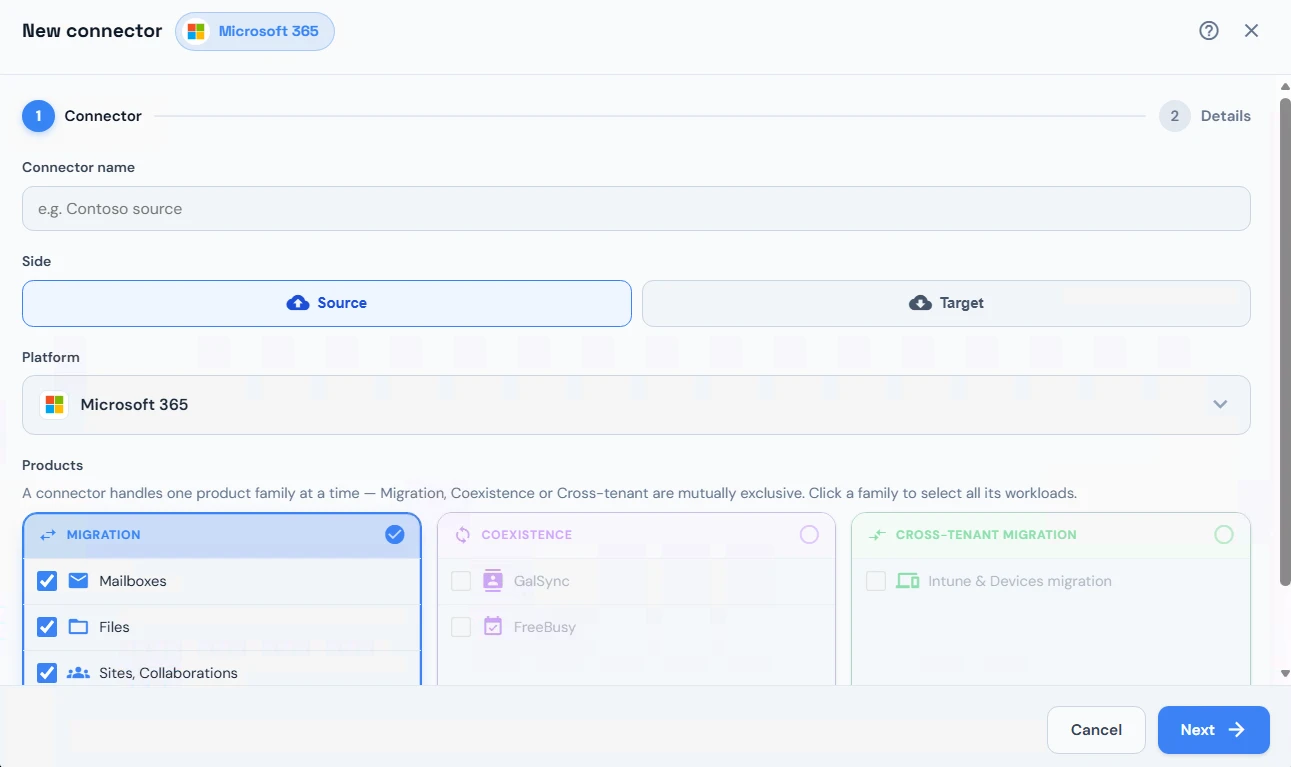
| Field | Description |
|---|---|
| Email Address | The email address of the Microsoft 365 administrator account |
| Administrator Password | The password for the administrator account |
| Regular O365 Tenant | Enable this option for standard Microsoft 365 tenants (disable for GCC or other government tenants) |
Click GRANT ADMIN CONSENT to authorize the Cloudiway application to access your Microsoft 365 tenant.
Step 2: Fill User List
To retrieve or upload your Dropbox users, select the User List tab under the Files product. There are three ways to populate the migration list.
Option 1: Discovery (Get List)
Under MIGRATION, click on the Get List option to discover all Dropbox team members:
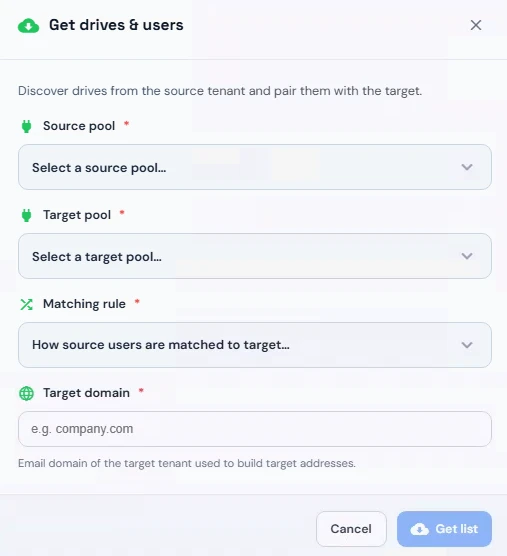
Select your source Dropbox connector, target connector, target type (OneDrive), and matching method. Click GET FILE USERS to start the discovery process. All Dropbox team members with their root folders will be listed.
Option 2: CSV Import File
The second way to populate the migration list is to upload a CSV file.
Check this article for generating the CSV file correctly: How to fill the Users/Groups CSV file
Click MANAGE > Import:
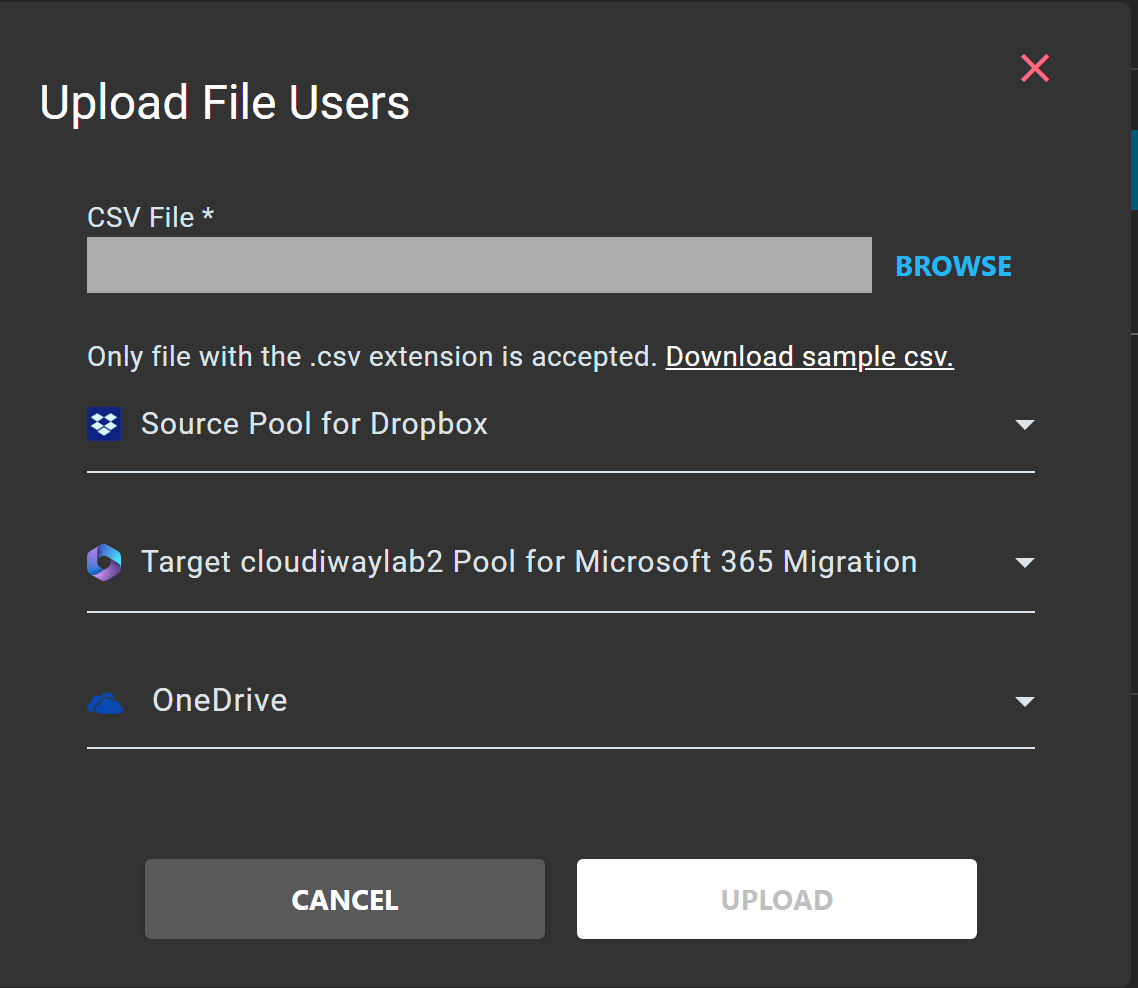
| Field | Description |
|---|---|
| CSV File | Click BROWSE to select your CSV file. You can click "Download sample csv" to get a template |
| Source Connector | Select your Dropbox source connector |
| Target Connector | Select your Microsoft 365 target connector |
| Target Type | Select OneDrive for OneDrive migration |
Click UPLOAD to import the user list.
Option 3: Manual Creation
The third way is to manually create an entry. Click the MANAGE tab, and from the drop-down list click Create.
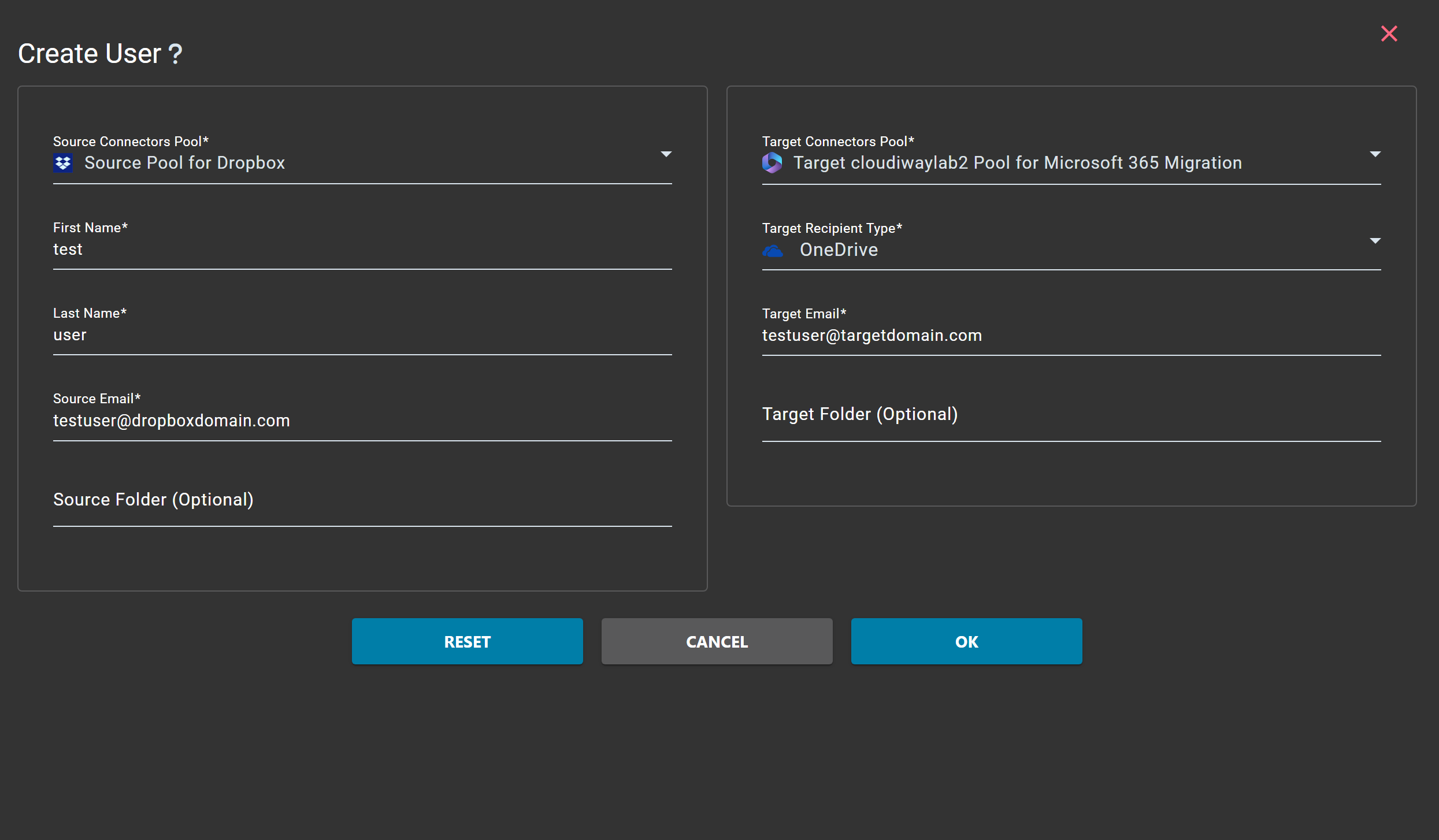
| Field | Description |
|---|---|
| Source Connectors Pool | Select your Dropbox source connector |
| First Name | The user's first name |
| Last Name | The user's last name |
| Source Email | The user's Dropbox email address |
| Source Folder (Optional) | Specific folder to migrate. Leave empty to migrate the entire Dropbox content |
| Target Connectors Pool | Select your Microsoft 365 target connector |
| Target Recipient Type | Select OneDrive for OneDrive migration |
| Target Email | The Microsoft 365 email address of the target user |
| Target Folder (Optional) | Specific folder within OneDrive. Leave empty to migrate to the root |
Step 3: Configure Target Location
Configure where Dropbox content will be migrated in OneDrive. For user-to-user migrations, each Dropbox user maps to their corresponding OneDrive account.
Assign Target Connector
Select users in the list and from the menu, click on MANAGE, then Assign Target to assign the Microsoft 365 target connector.
Set Target Location
The target OneDrive account is automatically determined based on the mapping table. You can also specify a subfolder within OneDrive if needed.
Step 4: Mapping Table
The mapping table converts Dropbox user emails to Microsoft 365 accounts. This ensures permissions are correctly migrated.
Navigate to Settings > Mapping Table to verify that:
- All Dropbox users have a corresponding Microsoft 365 account
- Email addresses are correctly matched
- External collaborators are mapped if needed
Step 5: Audit
The audit is optional and purely informative. You do not have to run it unless you want to see how many files and folders you have in Dropbox.
This feature reports information about the Source Dropbox account:
- Number of files
- Number of folders
- Total data size
To Audit a Dropbox user, in User List, select it and click MIGRATION > Audit.
Step 6: Preprocessing
The preprocessing step provisions OneDrive accounts for target users if they haven't been accessed before.
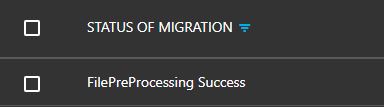
To run preprocessing, select the users and click MIGRATION > Preprocess.

After preprocessing completes successfully:
Step 7: Run Migration
Start the migration to copy Dropbox files to OneDrive.
Select Users
Select the Dropbox users you want to migrate.
Start Migration
Click MIGRATION then Start.
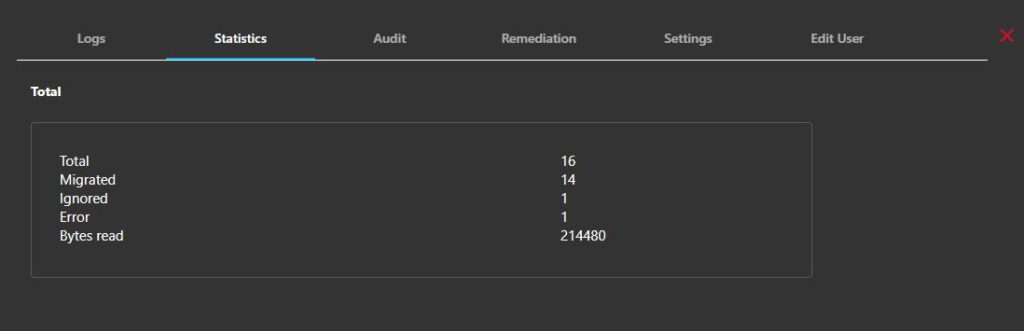
Monitor Progress
Monitor the migration progress in the logs table.
Migrate to Specific Folder
It is possible to split and reorganize your content during migration.
In particular, you may want to migrate only specific folders or to migrate content to a specific folder within OneDrive. You can refer to the following article to determine how to configure the migration platform for these specific scenarios:
How to migrate files from or to a specific folder
Exclude Folder
If you want to exclude different folders from the migration, enter the Folder ID in the exclusion settings. For Dropbox migrations, you only need to define the Folder ID — you don't need to set the path.
You can get the Folder ID from the Dropbox URL. The folder ID is the character chain following "home/" in the URL.
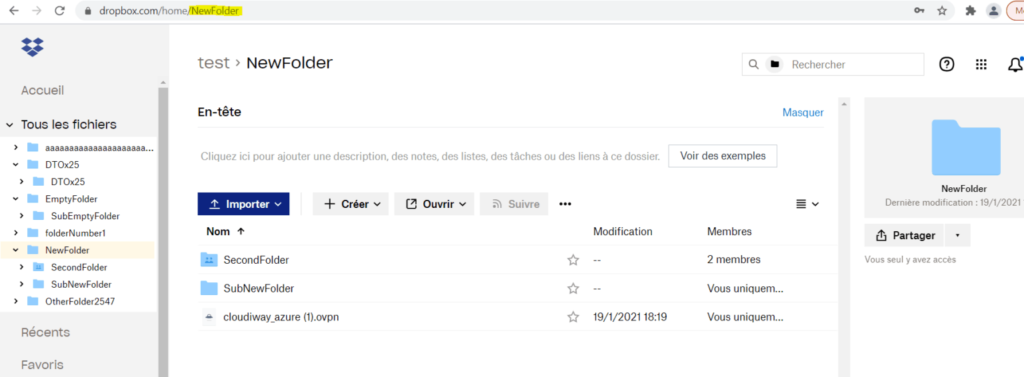
Configure folder exclusion by entering the Folder ID
Delta Pass
Cloudiway supports delta passes for Dropbox migrations. After the initial migration:
- Only new or modified files since the last migration are copied
- New folders are created
- The platform does not duplicate content
How to Start a Delta Pass
Simply restart the migration on the same users. Cloudiway automatically detects what has already been migrated.
Frequently Asked Questions
Can I migrate Dropbox folders to OneDrive?
Yes, Cloudiway supports migrating Dropbox folders to OneDrive for Business. Files, folder structures, and permissions are migrated.
Are Dropbox permissions preserved during migration?
Yes, Dropbox permissions are mapped to OneDrive permissions using the mapping table. User permissions are preserved.
Can I migrate Dropbox shared links?
Dropbox shared links are not migrated as-is. You will need to recreate sharing links in OneDrive after migration.
What happens to Dropbox Paper documents?
Dropbox Paper documents are converted and migrated to OneDrive. The content is preserved in a compatible format (typically as Word documents or HTML).
How long does the migration take?
Migration time depends on the volume of files, their sizes, and network conditions. The audit phase provides estimates. Typical migrations can process several GB per hour.
Get a free migration quote in minutes — entirely self-service.