
Microsoft Teams to Google Spaces Migration Guide
This guide shows you how to migrate Microsoft Teams channels and chats to Google Chat Spaces using Cloudiway. Migrate messages, files, members, and metadata while preserving conversation history.
Overview
This Microsoft Teams to Google Spaces Migration Guide shows you how to migrate your Microsoft Teams channels and chats to Google Chat Spaces.
Cloudiway uses Microsoft Graph API to read data from Microsoft Teams and Google Chat API to write data to Google Spaces. All network operations are performed over TLS 1.2.
Looking for our Teams Migration Solution?
Discover all features, pricing, and use cases for Microsoft Teams to Google Spaces migration.
View Solution PageWhat's Migrated
The following items are migrated from Microsoft Teams to Google Spaces:
Teams to Spaces Mapping
| Microsoft Teams | Google Spaces |
|---|---|
| Team Channel | Google Space |
| Private Channel | Private Google Space |
| 1:1 Chat | Direct Message |
| Group Chat | Group Conversation |
| Team Owner | Space Manager |
| Team Member | Space Member |
Limitations
The following items are NOT migrated:
- Teams apps and bots
- Teams tabs and connectors
- Meeting recordings
- Teams Wiki content
- Planner tasks
Prerequisites
To perform the Microsoft Teams to Google Spaces Migration, you need admin access to both platforms.
Microsoft 365 Requirements (Source)
Entra ID Application
Create an application in Microsoft Entra ID with Teams permissions
API Permissions
Microsoft Graph: ChannelMessage.Read.All, Chat.Read.All, Team.ReadBasic.All
Admin Consent
Granted by a Global Administrator
Google Workspace Requirements (Target)
Google Cloud Project
Create a project in Google Cloud Console (or use automatic mode)
Service Account
Create a Service Account with domain-wide delegation for Chat API
Migration Process
The Microsoft Teams to Google Spaces migration follows these steps:
Step 1: Create Connectors
Create connectors to connect Cloudiway to your Microsoft 365 and Google Workspace tenants.
Microsoft 365 Connector (Source)
Go to Connectors > New, select Microsoft 365 as connector type, set a connector name and select Sites, Collaborations. Click Next to configure the connector.
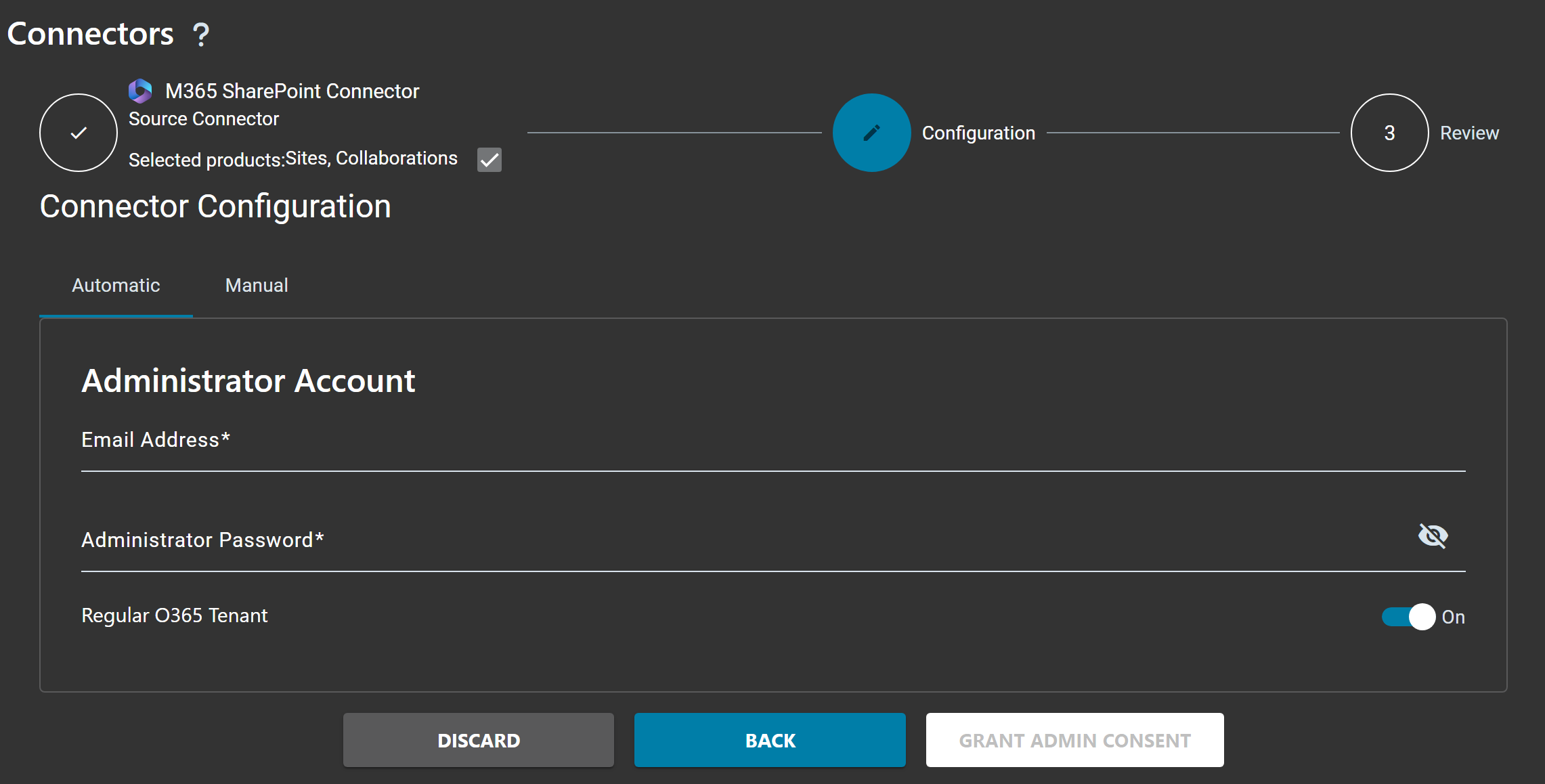
| Field | Description |
|---|---|
| Automatic | Cloudiway automatically creates and configures the Entra ID Application (recommended) |
| Manual | Manually configure your own Entra ID Application |
| Email Address | Microsoft 365 Global Administrator email address |
| Administrator Password | Password for the Administrator account |
| Grant Admin Consent | Click to authorize Cloudiway to access your Microsoft 365 tenant |
Google Workspace Connector (Target)
Go to Connectors > New, select Google as connector type, set a connector name and select Sites, Collaborations. Click Next to configure the connector.
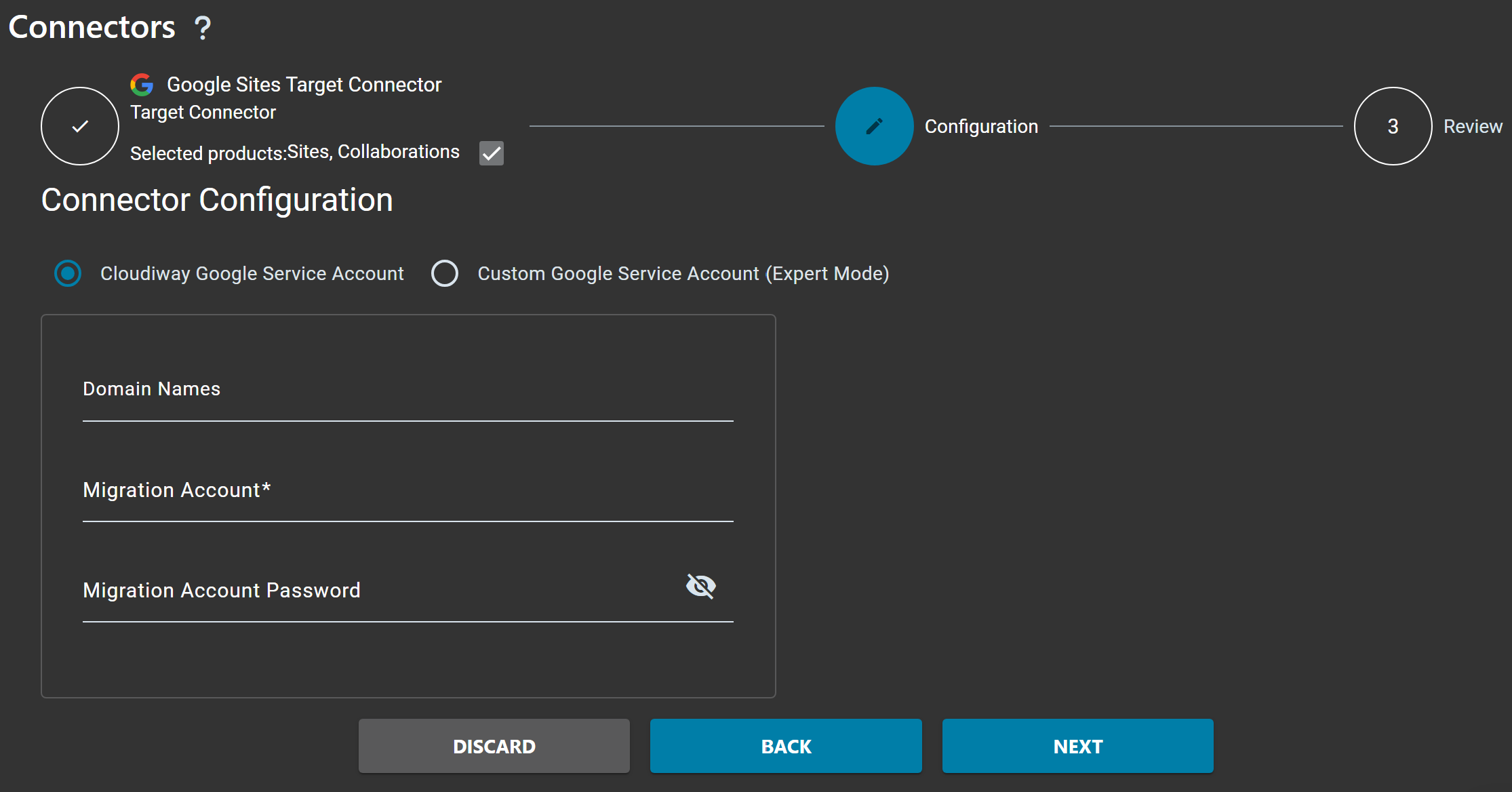
| Field | Description |
|---|---|
| Cloudiway Google Service Account | Use the Cloudiway-managed service account (recommended) |
| Custom Google Service Account | Expert mode - use your own Google Service Account |
| Domain Names | Your Google Workspace domain(s) |
| Migration Account | Google Workspace Super Admin email address |
| Migration Account Password | Password for the Super Admin account |
Step 2: Discovery
Discover the Microsoft Teams channels and chats to migrate. You can either use automatic discovery or import a CSV file.
Option 1: Get Teams (Automatic Discovery)
Navigate to Sites / Collaboration > Teams and click Get List to discover all Teams in your tenant.
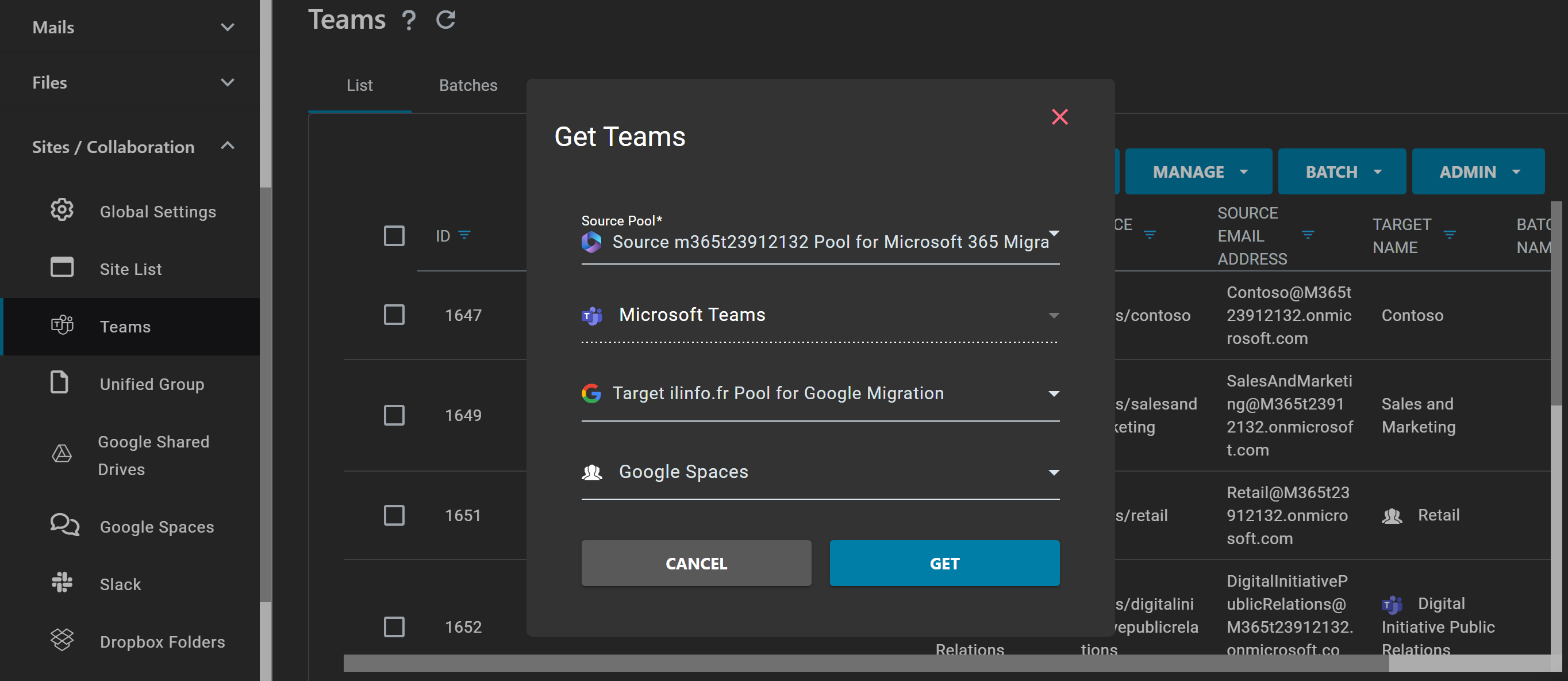
| Field | Description |
|---|---|
| Source Pool | Select your Microsoft 365 source connector pool |
| Microsoft Teams | Select Microsoft Teams as the source type |
| Target Pool | Select your Google Workspace target connector pool |
| Google Spaces | Select Google Spaces as the target type |
Click GET to start the automatic discovery of all Teams in your organization.
Option 2: Upload Teams (CSV Import)
Alternatively, you can upload a CSV file to specify which Teams to migrate. Click Import to open the Upload Teams dialog.
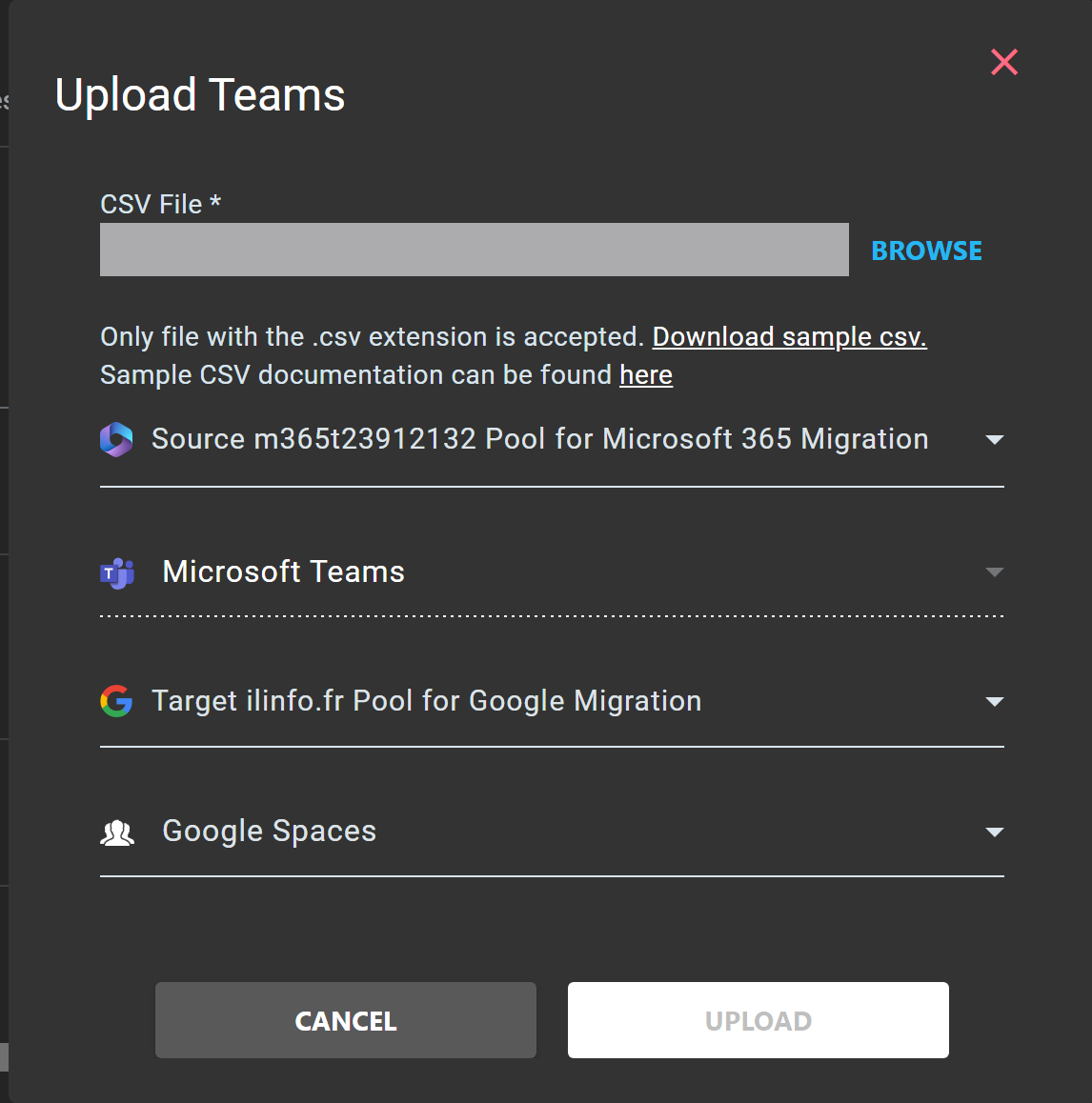
| Field | Description |
|---|---|
| CSV File | Browse and select your CSV file containing the Teams to migrate |
| Source Pool | Select your Microsoft 365 source connector pool |
| Microsoft Teams | Select Microsoft Teams as the source type |
| Target Pool | Select your Google Workspace target connector pool |
| Google Spaces | Select Google Spaces as the target type |
Step 3: Configure Target
Configure the target Google Spaces for each Teams channel.
Target Configuration Options
| Option | Description |
|---|---|
| Create New Space | Cloudiway creates a new Google Space with the same name as the Teams channel |
| Use Existing Space | Map to an existing Google Space (specify the Space ID) |
| Custom Name | Create a new Space with a custom name |
Step 4: Mapping Table
Verify the mapping table to ensure all Teams members are correctly mapped to Google Workspace users.
Navigate to Settings > Mapping Table to verify and update user mappings.
Step 5: Audit
Run an audit to analyze the Teams channels before migration.
Select Teams
Select the Teams channels you want to audit.
Run Audit
Click MIGRATION > Audit to start the audit process.
Review Results
Review the audit results to understand message counts, file sizes, and potential issues.
Step 6: Preprocessing
Run preprocessing to create the target Google Spaces and add members.
Select Teams
Select the Teams channels to preprocess.
Run Preprocessing
Click MIGRATION > Preprocessing to create Spaces and add members.
Space Naming & Existing Spaces
Preprocessing creates one Google Chat Space per source channel and adds the channel's members. Spaces are named:
<Target Name> - <Channel Name> (or <Team Name> - <Channel Name> if no Target Name is set)
The channel name is always appended, so each Space is uniquely named — even single-channel teams (e.g. Sales - General).
If the Space does not exist in the target
A new Space is created in Import Mode (preserves original message dates and authors) and the source members are added. Run Post-Migration afterward to finalize it — within the Import Mode time window.
If the Space already exists in the target
Preprocessing binds to it instead of creating a duplicate — as long as the existing Space is named exactly <Target Name> - <Channel Name>. When matched, it links the channel to that Space and adds the source members into it.
Requirements:
- The migration account must be a member of the existing Space, or it won't be found ("Space not found — please preprocess first").
- Content is later added as normal posts (no original dates/authors), since the Space wasn't created in Import Mode.
| Situation | Space created? | Members added? | History fidelity |
|---|---|---|---|
| Space not in target | Yes (Import Mode) | Yes | Original dates & authors |
| Space already in target (named correctly) | No — bound to it | Yes | Normal posts |
Step 7: Migration
Run the migration to transfer messages, files, and metadata from Teams to Google Spaces.
- Ensure preprocessing has completed successfully
- Verify all users are mapped correctly
- Run a test migration on a single channel first
Start Migration
- Select the Teams channels to migrate
- Click MIGRATION > Start
- Monitor progress in the migration logs
Delta Pass
Cloudiway supports delta passes for Teams migrations.
After the initial migration:
- Only new messages since the last migration are transferred
- New files and attachments are migrated
- New members are added to the Spaces
How to Start a Delta Pass
Simply restart the migration on the same Teams channels. Cloudiway automatically detects what has already been migrated.
Frequently Asked Questions
What is migrated from Microsoft Teams to Google Spaces?
Cloudiway migrates Teams channels, chat messages, files, attachments, reactions, mentions, and member information to Google Chat Spaces.
Are Teams private chats migrated?
Yes, Microsoft Teams private chats (1:1 and group chats) can be migrated to Google Chat direct messages or group conversations.
Does Cloudiway support delta migration for Teams?
Yes, Cloudiway supports delta passes. After the initial migration, subsequent runs only migrate new messages and changes.
What about Teams meeting recordings?
Teams meeting recordings are stored in OneDrive/SharePoint and are not migrated as part of the Teams to Spaces migration. Use the file migration tools separately.
Do I need admin access to both platforms?
Yes, you need Global Admin access to Microsoft 365 and Super Admin access to Google Workspace. Cloudiway can automatically configure the required applications.
Get a free migration quote in minutes — entirely self-service.