

You can deploy Microsoft 365 Copilot in 30 seconds. You can also expose every overshared file in your tenant in the same 30 seconds. The AI readiness checklist below is what separates the two outcomes.
This checklist is the same one MSPs and Microsoft consultancies have built up across hundreds of Copilot pre-deployment audits. We have organized it into six domains, each with the high-impact checks first. Use it as-is for a manual review, or jump to the automation section if you would rather have an AI readiness assessment platform run all of it for you.
Domain 1: Licensing & AI Governance
Before any technical control matters, the licensing layer must be in order. Copilot has specific licensing prerequisites and your AI governance posture sets the tone for everything that follows.
Licensing & AI governance checklist
- Microsoft 365 Copilot license assigned to every user who will receive the assistant (E3/E5 + Copilot, Business Standard/Premium + Copilot).
- Copilot eligible base license (E3 or higher, Microsoft 365 Business Standard/Premium) verified for each pilot group.
- Microsoft 365 admin center → Copilot Dashboard reviewed for adoption signals.
- AI usage policy published and acknowledged by employees (data classification, do/don't lists, generated-content review obligations).
- Data residency / sovereignty constraints documented (EU Data Boundary, Microsoft Cloud for Sovereignty if applicable).
- Acceptable Use Policy updated to include AI-generated content and prompt-injection awareness.
- Pilot group defined (10–50 users) with clear success criteria.
Domain 2: Identity, MFA & Conditional Access
If an attacker can compromise an identity, Copilot becomes their query engine over your sensitive content. The identity layer is the first defensive control on any AI readiness check.
Identity & access checklist
- MFA enforced on 100% of admin accounts (Global, SharePoint, Exchange, Compliance, Security, Helpdesk).
- MFA enforced on all standard users, ideally via per-user enforcement or Conditional Access.
- Privileged Identity Management (PIM) enabled for eligible role activation.
- Conditional Access baseline policies published (block legacy auth, require MFA, require compliant device for sensitive apps).
- Sign-in risk and user-risk policies active in Microsoft Entra ID Protection (P2 license).
- Dormant guest accounts removed (no sign-in for 90+ days).
- Guest access reviews scheduled quarterly.
- Service principal / app registration audit: no over-privileged consents (e.g., Files.ReadWrite.All for non-essential apps).
Domain 3: SharePoint & OneDrive Permissions
This is where Copilot does the most damage on an unprepared tenant. Permission sprawl across SharePoint Online and OneDrive for Business is the single biggest reason readiness scores come in low.
SharePoint & OneDrive checklist
- "Anyone with the link" sharing disabled at the tenant level, or restricted to specific sites.
- Default sharing scope set to "People in your organization" (not "Anyone").
- External sharing inventory reviewed (B2B share count, last activity, expiration).
- "Everyone except external users" group reviewed across all sites — no critical files exposed.
- Broken inheritance identified on critical libraries; permissions reset to standard model where possible.
- Orphaned sites (no active owner) reassigned or archived.
- OneDrive accounts of departed users reviewed for sensitive content before deletion or transfer.
- Sensitivity labels applied to high-impact sites (HR, Legal, Finance, M&A).
- Anonymous link expiration enforced (max 30 days for new links).
Domain 4: Microsoft Teams Governance
Teams channels and shared chat history are an underestimated Copilot exposure surface. Inactive ownerless teams, public channels containing sensitive draft content, and external chat federation all factor into the readiness score.
Microsoft Teams checklist
- Every team has an active owner (no ownerless / sole-owner-departed teams).
- Public channels reviewed for accidentally sensitive content.
- Private channels inventoried (membership, parent team association).
- Guest access policy defined per-team (allow/block external collaboration).
- External federation scoped to approved domains only.
- Inactive teams (no message in 90+ days) flagged for archive.
- Naming and provisioning policies applied (Teams provisioning portal, Microsoft 365 Groups expiration).
- Sensitivity labels for Teams deployed (controls guest access, external sharing per label).
Domain 5: Exchange Online Hygiene
Exchange-related risks are subtle: auto-forwarding rules can quietly send sensitive mail outside the tenant, suspicious inbox rules from past compromises may persist, and full-access delegates can broaden Copilot's effective view of mail content.
Exchange Online checklist
- External auto-forward disabled at the tenant level (or restricted to whitelist).
- Mailbox audit logging enabled for all mailboxes.
- Suspicious inbox rules (forward-and-delete, hide-with-keyword) reviewed and removed.
- Full-access delegates inventoried and justified.
- Calendar publishing / sharing reviewed (free/busy only vs full details).
- Anti-phishing policies aligned with Microsoft Defender baseline.
- SPF, DKIM, DMARC aligned and DMARC enforcement at p=quarantine or p=reject.
- Shared mailboxes inventoried with explicit access lists.
Domain 6: Microsoft Purview & Compliance
Purview is what tells Copilot "this content is sensitive — handle differently". Without sensitivity labels and DLP policies in place, Copilot has no way to differentiate a board-meeting deck from the cafeteria menu.
Microsoft Purview checklist
- Sensitivity labels published with at least Public / Internal / Confidential / Highly Confidential tiers.
- Auto-labeling policies applied to high-volume sensitive content (PII, financial, IP).
- Default labels applied to documents and emails per business unit.
- DLP policies in place for credit card, IBAN, national IDs, source code (where relevant).
- Insider Risk Management policies configured (data exfiltration, departing employees).
- Information Barriers deployed if regulated (finance front-office vs research, legal Chinese walls).
- Records management / retention labels aligned with legal hold requirements.
- Audit log search enabled and ingested into SIEM.
How to Score Your AI Readiness Checklist
A checklist is only useful if it produces a score that triggers a decision. Most enterprise frameworks (and the Microsoft Cloud Adoption Framework) use a 1.0 to 5.0 scale across weighted pillars. Here is a simplified version you can apply manually:
| CAF Score | Status | Recommendation |
|---|---|---|
| 4.5 – 5.0 | Copilot-Ready | Deploy to production with confidence. Run quarterly delta audits. |
| 3.5 – 4.5 | Pilot-Ready | Deploy to a controlled pilot group while remediating remaining gaps. |
| 2.0 – 3.5 | Needs Work | Significant remediation required before deployment. Prioritize identity and SharePoint. |
| 0 – 2.0 | At Risk | Do not deploy Copilot. Tenant has multiple critical exposures. |
Apply the score per domain and compute a weighted average (Data Exposure 40%, Access Governance 25%, Data Protection 25%, AI Governance 10%). This gives you the global CAF Score that the AI Readiness Assessment platform produces automatically.
From Checklist to Automated AI Readiness Audit
A serious manual run of the six-domain checklist takes 8 to 10 working days for a single Microsoft 365 tenant — PowerShell scripts, admin portal cross-checking, multiple CSVs and a senior consultant interpreting the data. For an MSP serving multiple clients, that math does not work.
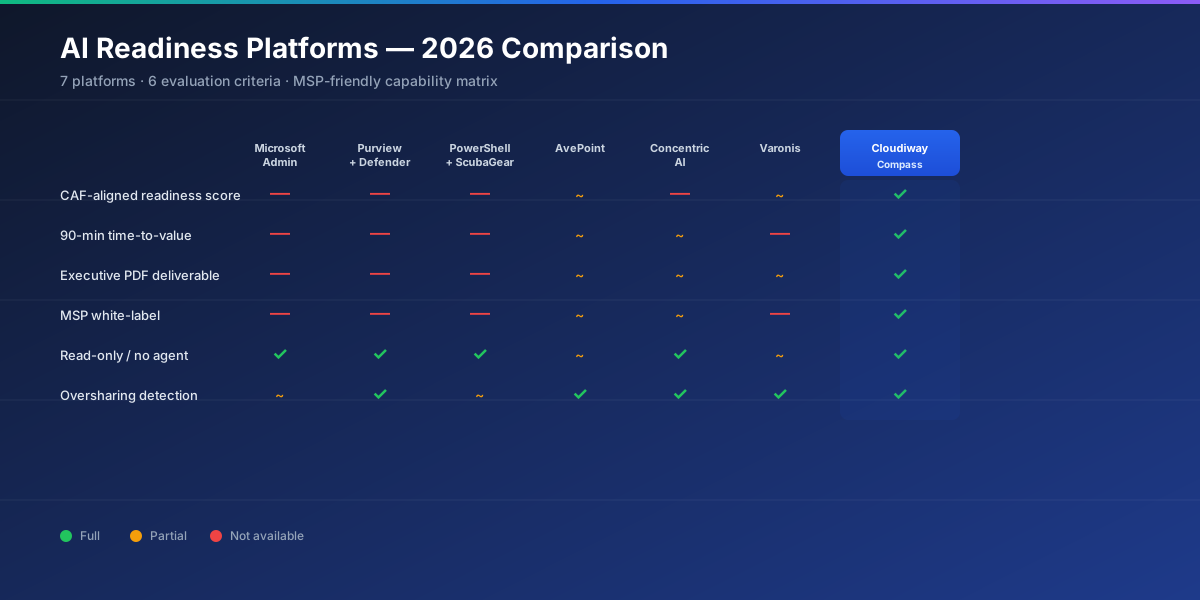
The Cloudiway AI Readiness Assessment automates every check above via a read-only OAuth connection: 100+ checks, 19 risk categories, all six domains, in roughly 90 minutes. The output is a CAF Score from 1.0 to 5.0, an executive PDF for leadership, a detailed risk PDF for IT, a technical Excel for remediation, and an interactive dashboard to track score evolution.
Want to see what your tenant scores today? Run a free AI Readiness Assessment on a real tenant and get the full CAF report in 90 minutes — no credit card required, no agent installed, no data stored.
Run the entire checklist as an automated 90-minute audit
OAuth read-only connection · 100+ checks · CAF Score · 30-day remediation plan · No agent, no data stored.
Start a Free AI Readiness Assessment →Frequently asked questions about the AI readiness checklist
What is an AI readiness checklist?
An AI readiness checklist is a structured set of pre-deployment checks across identity, licensing, content security, and governance that an organization completes before activating an AI assistant such as Microsoft 365 Copilot. The checklist surfaces gaps that the AI would otherwise amplify — broad sharing links, dormant guest accounts, missing sensitivity labels, weak Conditional Access — and translates them into a concrete remediation plan.
Why do I need an AI readiness check before deploying Microsoft 365 Copilot?
Microsoft 365 Copilot inherits every permission decision your organization has ever made. If a 2019 'Anyone in the organization' link still grants access to a confidential document, Copilot will surface it instantly the first time someone asks a related question. A pre-deployment AI readiness check identifies these latent exposures and ranks them by impact so they can be remediated before Copilot is enabled tenant-wide.
How long does it take to complete a manual AI readiness checklist?
A thorough manual AI readiness check across the six core domains (licensing, identity, SharePoint and OneDrive permissions, Teams governance, Exchange hygiene, Purview compliance) typically takes 8 to 10 days for a single Microsoft 365 tenant when performed with PowerShell scripts and admin-portal cross-checking. Automated AI readiness assessment platforms reduce the same scope to roughly 90 minutes.
What domains should an AI readiness checklist cover?
A complete AI readiness checklist covers six domains: (1) Licensing and AI Governance, (2) Identity, MFA and Conditional Access, (3) SharePoint and OneDrive permissions and sharing, (4) Microsoft Teams governance and channel ownership, (5) Exchange Online hygiene including auto-forward rules, and (6) Microsoft Purview sensitivity labels and DLP policies. Each domain maps to a specific class of risk that Copilot can amplify if left unchecked.
What is a passing score on an AI readiness checklist?
Most frameworks score readiness on a 1.0 to 5.0 scale aligned with the Microsoft Cloud Adoption Framework (CAF). A score of 3.5 or higher indicates the environment is ready for Copilot deployment with manageable risk; 4.5 or higher is the recommended target for enterprise rollout. Below 3.5, remediation should precede deployment to avoid AI-mediated data exposure.
How does the Cloudiway AI Readiness Assessment use this checklist?
The Cloudiway AI Readiness Assessment automates every check in the six-domain checklist via a read-only OAuth connection to your Microsoft 365 tenant. It runs 100+ checks across 19 risk categories in roughly 90 minutes, produces a CAF Score, executive PDF, technical Excel and a 30-day remediation roadmap — replacing the manual PowerShell-and-CSV workflow MSPs and IT teams still rely on.