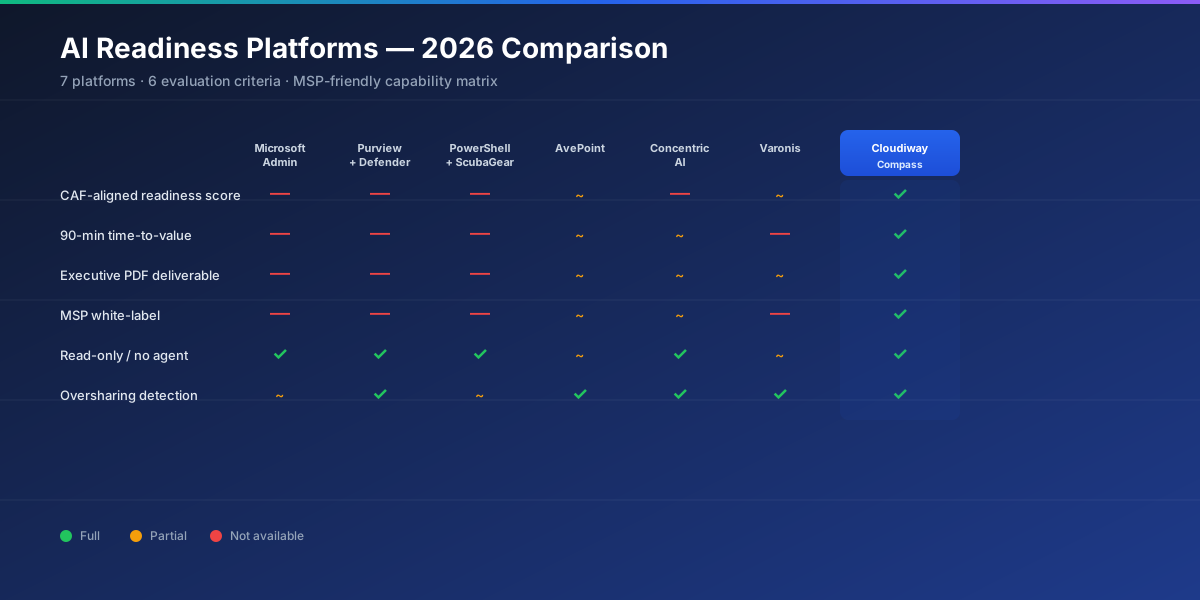


If you have ever tried to assess a Microsoft 365 tenant for Copilot readiness using PowerShell, you know the math. 8 to 12 hours of script execution per tenant. Two more days of manual interpretation across CSV files. A senior consultant's calendar block to consolidate findings into something a client can read. Repeat for every customer.
That math no longer works for any MSP serious about a Copilot practice. Below is the actual workflow we use to take a fresh customer tenant from "we want to deploy Copilot" to "here is your CAF Score and your 30-day remediation plan" in roughly 90 minutes. The platform we use is the Cloudiway AI Readiness Assessment, but the workflow itself maps to any modern AI readiness assessment tool.
Prerequisites and Required Permissions
Before you start, line up the following. None of these require admin changes on the customer side — they are standard read-only requirements:
- A Cloudiway Compass account (the MSP partner portal where AI Readiness Assessments are launched).
- Customer tenant access via either a dedicated Global Reader account or your standard delegated GDAP path.
- OAuth consent rights in the customer tenant. A Global Administrator must approve the application registration once; subsequent runs reuse the consent.
- 30 minutes of human time on day one (consent, kickoff, validation). The remaining 60 minutes are unattended scan time.
If you are new to Microsoft 365 OAuth permissions, the assessment uses delegated read-only scopes only — no application permissions, no privileged access. Customer security teams are typically comfortable approving the consent in the same review window as Microsoft Graph third-party consents.
Step 1: Connect the Tenant via OAuth
1OAuth consent on the customer tenant
From your Cloudiway dashboard, click New Assessment. Compass generates an OAuth consent URL. Send the URL to the customer Global Administrator (or use it yourself if you operate under GDAP). The administrator signs in once, reviews the requested read-only scopes, and approves the consent.
The platform automatically registers the necessary scanner applications in the customer's Entra ID. These applications are isolated to the assessment workload and can be reviewed or revoked at any time from the Entra ID admin portal.
⏱ Wall-clock: ~5 minutes
Step 2: Trigger the Automated Scan
2Launch and walk away
Once the consent is approved, click Start Scan. The platform begins parallelized walks across all Microsoft 365 workloads — SharePoint Online site collections, OneDrive for Business accounts, Microsoft Teams team and channel metadata, Exchange Online mail flow rules, Entra ID identities and Conditional Access policies, and Microsoft Purview labels and DLP policies.
You do not need to supervise the scan. Most MSPs trigger 5 to 20 assessments in parallel across different client tenants and pick up results as they finish. The platform sends an email notification when each scan completes.
⏱ Wall-clock: ~60–90 minutes (unattended)
Step 3: Read the CAF Score and Risk Catalog
3Open the dashboard and walk the findings
When the scan finishes, open the assessment dashboard. You will see:
- Global CAF Score from 1.0 to 5.0, with the deployment recommendation (deploy, pilot, remediate-first).
- Per-pillar breakdown across Data Exposure (40%), Access Governance (25%), Data Protection (25%) and AI Governance (10%).
- Risk catalog across 19 categories with severity scoring (Critical, High, Medium, Low).
- Top 10 highest-impact findings ranked by composite severity × prevalence.
Spend 15 minutes here. Note the bottom-three pillar scores — that is where remediation effort will pay off most. Skim the top 10 findings to spot any catastrophic exposures (anonymous links to confidential libraries, admins without MFA, external auto-forward rules).
⏱ Wall-clock: ~15 minutes
Step 4: Generate Reports for the Client
4Export and white-label
From the dashboard, click Export to generate three deliverables:
- Executive Summary PDF — 6 pages, no jargon, CAF Score, top 5 risks in business language, 30-day action plan summary. Designed to be skim-readable by a CEO or CFO.
- Risk Assessment PDF — full risk catalog by severity, each entry with description, business impact, technical detail, and recommended remediation step.
- Technical Excel — 8 tabs of raw scan data, permission matrices, risk inventory and a remediation checklist for the IT team.
If you operate under MSP white-label, all three reports carry your logo, colors and contact details out of the box. No extra design work.
⏱ Wall-clock: ~5 minutes
Step 5: Present Findings and Plan Remediation
5Run the client review meeting
Schedule a 60-minute review with the customer. Open with the Executive Summary PDF — CAF Score, deployment recommendation, top 5 risks. Use plain business language: "your tenant scores 3.2 out of 5 today, which means Copilot deployment should wait until the Data Exposure pillar is remediated; here is the 30-day plan."
Once the executive sign-off is in, switch to the interactive Risk Management UI for the IT track. Filter findings by severity, assign owners, set due dates. Most MSPs propose a remediation engagement at this point — the platform's risk inventory becomes the natural scope statement.
Finally, schedule a re-assessment for 30 days out. After remediation, run the same scan to validate the improved CAF Score and unlock the Copilot deployment go-ahead.
⏱ Wall-clock: ~60 minutes (client meeting)
Run your first AI Readiness Assessment for free
Real tenant, full CAF Score, executive PDF — no credit card, no commitment.
Start a Free AI Readiness Assessment →Manual PowerShell vs. Automated AI Readiness Workflow
Side-by-side comparison of a manual workflow vs. the automated platform-based workflow described above:
| Step | Manual PowerShell + portals | Automated AI readiness platform |
|---|---|---|
| Connect tenant | Service principal setup, app registration, role assignment — 30 min minimum | Single OAuth consent — 5 min |
| Run scan | 8 to 12 hours of PowerShell across SharePoint, OneDrive, Teams, Exchange, Entra ID | 90 minutes parallelized, unattended |
| Interpret data | 2 days of CSV cross-correlation, manual scoring, judgement calls | 15 minutes — score is computed automatically |
| Build executive report | 4 to 8 hours of slide design and copywriting | 5 minutes — auto-generated, white-labeled |
| Re-assessment | Repeat the whole process | One click; CAF Score evolution tracked over time |
| Total time per tenant | 8 to 10 working days | ~2 hours active + 90 min unattended |
The math is what made MB Solutions and CHEOPS Technology — both featured in our customer stories — replace their manual workflow. CHEOPS cut their assessment time from 5 days to 2 hours; MB Solutions multiplied their throughput while maintaining quality.
Frequently asked questions about running an AI Readiness Assessment
How long does it actually take to run an AI Readiness Assessment on Microsoft 365?
An automated AI readiness assessment platform like Cloudiway completes a tenant-wide scan in roughly 90 minutes for a typical Microsoft 365 tenant of 500 to 1,000 users. Larger tenants (5,000–10,000 users) may take 2 to 4 hours due to more SharePoint and OneDrive content to walk. Compared with a manual PowerShell + admin portal approach (8 to 10 working days for the same scope), the automated path is roughly 50× faster.
What permissions do I need to run the assessment on a customer tenant?
The Cloudiway AI Readiness Assessment uses a delegated OAuth consent with read-only scopes across Microsoft Graph (User.Read.All, Group.Read.All, Sites.Read.All, Files.Read.All), Exchange Online (Mailbox.Read), and Microsoft Purview (InformationProtectionPolicy.Read). The MSP's user only needs to sign in once with a Global Reader (or a dedicated read-only admin) account to grant the consent. No content is ever stored — only metadata is analyzed.
Do I need to install anything on the client tenant before running the AI readiness audit?
No. The AI readiness audit runs entirely from Cloudiway's cloud platform. No agent, no PowerShell module, no application package on the customer side. The OAuth consent automatically registers the necessary scanner applications in the customer's Entra ID for parallelized execution. Setup time is approximately 5 minutes.
Can I run multiple AI readiness assessments in parallel for different clients?
Yes. Each tenant connection is isolated and runs independently. MSPs commonly run 5 to 20 assessments simultaneously across different client tenants — there is no scheduling lock, no shared queue, no need for active supervision. Most consultants kick off the scan, work on other engagements, and return when the report is ready.
What does the executive summary in the AI readiness assessment report contain?
The 6-page executive summary PDF is built for non-technical leadership: a single CAF Score from 1.0 to 5.0, a one-page risk overview by pillar (Data Exposure, Access Governance, Data Protection, AI Governance), the top five highest-impact findings phrased in business language, the recommended deployment posture (deploy / pilot / remediate-first), and a 30-day action plan summary. It is intentionally short so a CEO or CFO can read it before the next meeting.
How do I present AI readiness assessment findings to a client without sounding too technical?
Lead with the CAF Score (one number), the deployment recommendation (deploy / pilot / hold), and the business risk in plain language. Use the executive summary PDF as the meeting backbone — it is built to be skim-readable. Reserve the technical Excel and detailed risk PDF for the IT track of the conversation. The interactive Risk Management UI in the platform also lets you walk the client through findings live, filter by severity, and assign remediation tasks during the call.