
What counts as oversharing in SharePoint
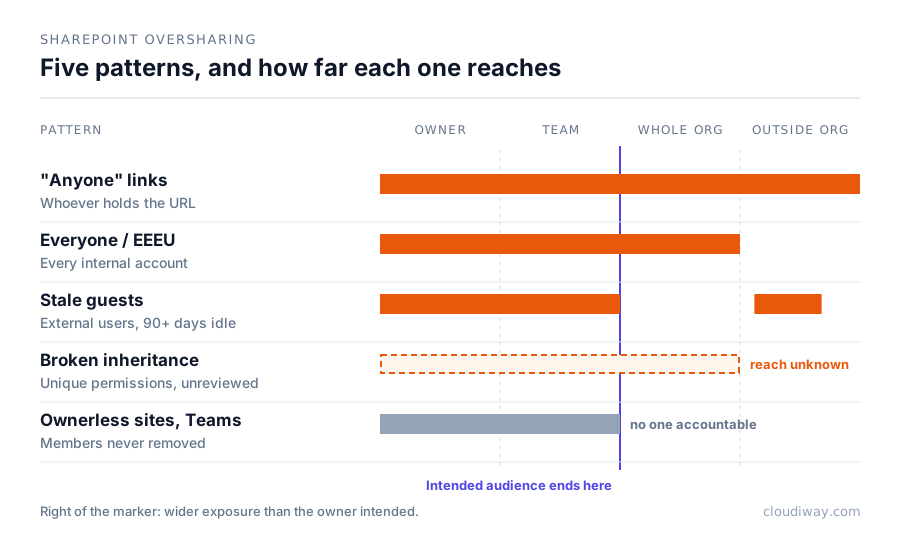
Oversharing is not only an external problem. Internal exposure is usually larger, and it is the part Copilot amplifies. Five patterns account for most of it.
| Pattern | What it means | Why Copilot makes it worse |
|---|---|---|
| "Anyone" links | Anonymous links that work for whoever holds the URL | The content stays reachable long after the project ends |
| Everyone / Everyone Except External Users (EEEU) | A site or library opened to the whole organization | Every employee's Copilot can draw on it |
| Broken permission inheritance | Unique permissions on folders or files that nobody reviews | Exceptions accumulate and escape site-level reviews |
| Ownerless sites and Teams | No one is accountable for access | Nobody removes members who should have left |
| Stale guests | External users inactive for 90+ days who keep access | Access persists outside your organization |
How Copilot exposes overshared content
Copilot respects existing permissions. It does not grant new access. It does remove the obscurity that used to protect overshared content: a salary file buried in an EEEU-shared site was rarely found by browsing, but it can appear in an answer to "summarize the latest compensation changes".
That is why oversharing remediation comes before licence assignment, not after. The Microsoft 365 Copilot risk catalog lists the other risks to clear at the same time.
Three ways to build a SharePoint oversharing report
1. Native reports: SharePoint Advanced Management
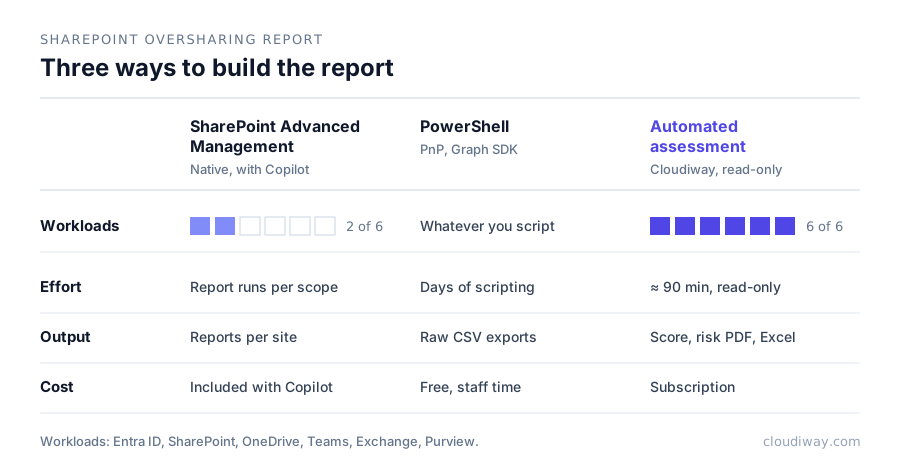
SharePoint Advanced Management is included with Microsoft 365 Copilot licences. Its data access governance (DAG) reports flag sharing links, sites shared with Everyone Except External Users and, through permission state reports, how broadly sites, OneDrive accounts and files are exposed. Site access reviews hand the follow-up to site owners, and restricted content discovery can keep high-risk sites out of Copilot while you fix them.
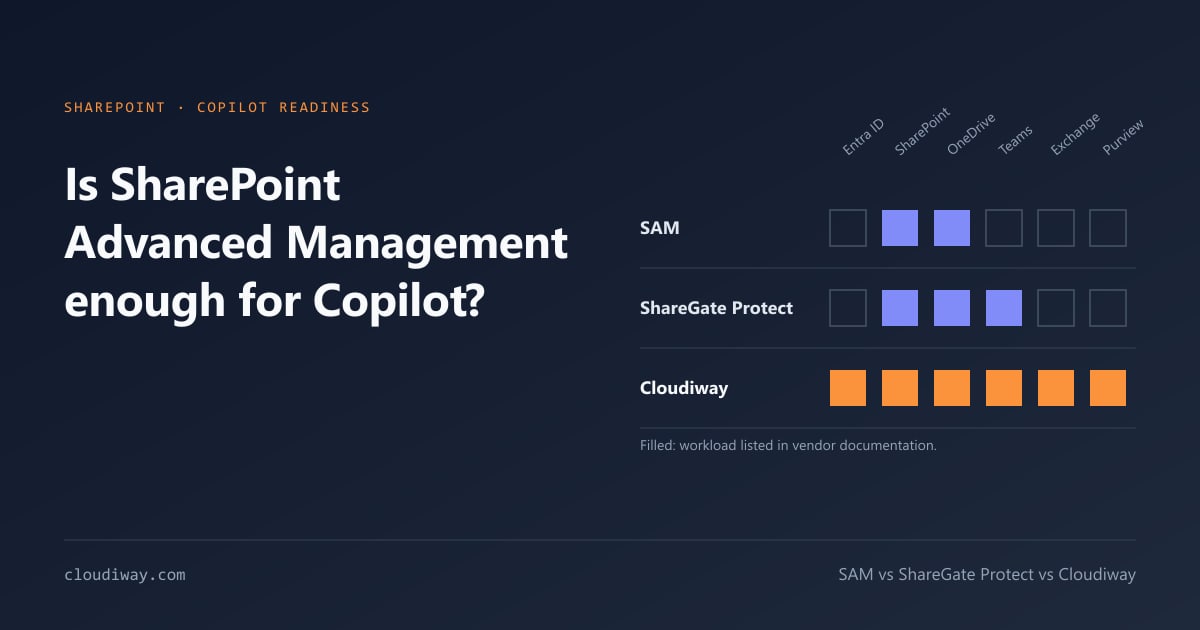
Limits: coverage is SharePoint and OneDrive. Guests in Entra ID, Teams policies and Exchange forwarding sit elsewhere, and there is no single readiness score. We look at that gap in detail in Is SharePoint Advanced Management enough for Copilot?
2. PowerShell scripts
PnP PowerShell and the Microsoft Graph SDK can enumerate sharing links and unique permissions across every site. This is precise and free, but on a large tenant it means days of scripting, throttling management and spreadsheet consolidation.
3. Automated assessment
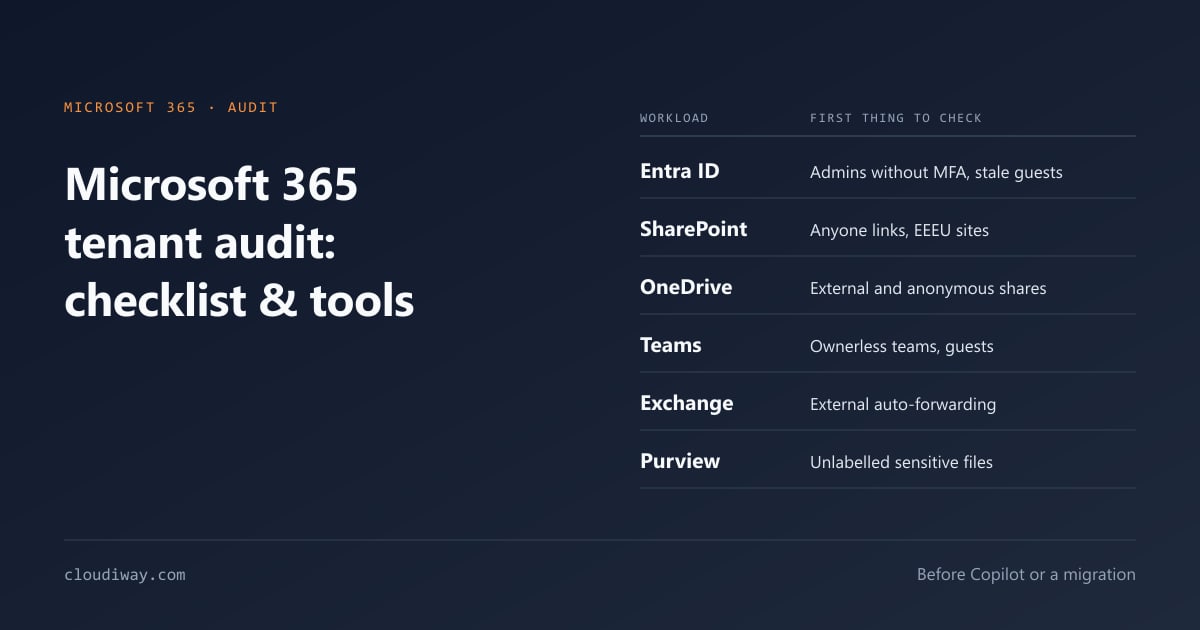
The Cloudiway AI Readiness Assessment scans SharePoint, OneDrive and Teams for all five patterns, and correlates them with Entra ID, Exchange and Purview findings. The scan runs in about 90 minutes over a read-only OAuth connection, with no agent and no content stored.
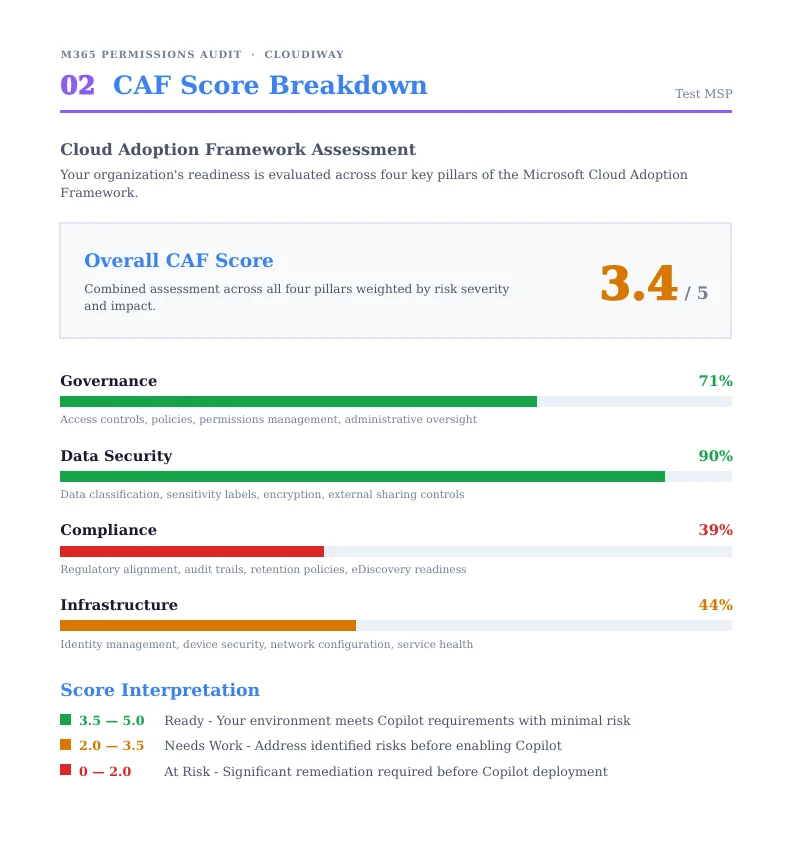
External sharing controls sit in the heaviest pillar of the CAF Score: Data Security accounts for 40% of the result. Each finding comes with its severity and the remediation step, in a risk PDF and a technical Excel workbook.
Fixing oversharing: a prioritized order
- Remove "Anyone" links on sensitive content, then restrict anonymous link creation at tenant level.
- Replace EEEU and Everyone grants with explicit groups on every site that does not need to be org-wide.
- Assign owners to ownerless sites and Teams, and archive the inactive ones.
- Review broken inheritance, starting with libraries holding HR, finance and legal content.
- Remove stale guests and enforce guest access reviews.
- Label sensitive files with Purview sensitivity labels so protections follow the file.
- Re-scan and compare the score before enabling Copilot broadly.
Get your SharePoint oversharing report in 90 minutes
All five patterns, correlated with Entra ID, Exchange and Purview findings, with the remediation step for each one.
Start a free AI Readiness Assessment →Frequently asked questions about SharePoint oversharing
How do I find overshared files in SharePoint?
Use SharePoint Advanced Management data access governance reports for a native view, PnP PowerShell or the Microsoft Graph SDK for a custom inventory, or an automated assessment that covers SharePoint, OneDrive, Teams, Entra ID, Exchange and Purview in one scan.
What is Everyone Except External Users (EEEU)?
It is a built-in claim that grants access to every internal account in the tenant. Sites shared with EEEU are readable by every employee, and therefore by every employee's Copilot.
Does Copilot change SharePoint permissions?
No. Copilot only surfaces content the user can already open. It makes existing oversharing visible.
Is restricted content discovery enough?
No. Restricted content discovery hides selected sites from Copilot and organization-wide search, but it does not remove access: users who open the site or a link keep their permissions. It is a stopgap while you fix the underlying permissions.